Turn Your Android Tablet into a Home Assistant Kiosk (2026 Setup Guide)
An old Android tablet on the wall, showing your Home Assistant dashboard and nothing else, is one of the cheapest good things you can do to a smart home. No phone unlock, no app drawer, no "which tab was it again" — just the screen, on, showing what you asked for.
I make HAkiosk, the Android app this guide uses, so treat me as an interested party. What I can promise is that everything below describes what the app actually does today, in version 2.1, and I say plainly where it stops.
Why a dedicated tablet beats reaching for your phone
Home Assistant is enormously capable, and that is exactly the problem for the ten-second interactions: is the garage shut, is the washing machine done, how cold is it outside. Unlocking a phone and finding the right view costs more attention than the question is worth.
A wall tablet turns those into a glance. It also gives the rest of the household a way in that does not involve installing anything or having an account. And unlike a purpose-built smart display, it is not locked to somebody's ecosystem — it shows a web page, so it shows whatever you build.
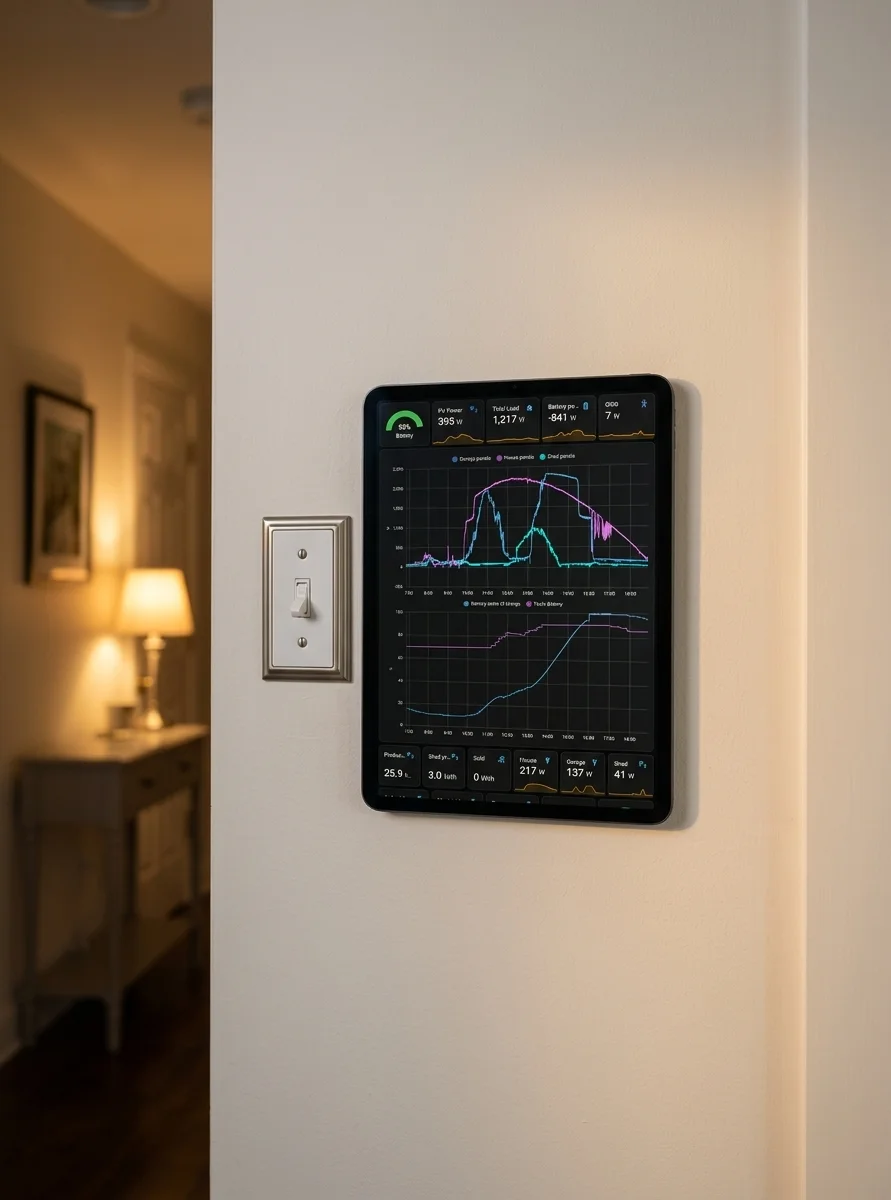
The hardware case is easy: a tablet you already own, or a cheap new one, plus a mount and a charging cable.
Picking a tablet
Android 8.1 or newer. That is HAkiosk's floor (minimum SDK 27), and it covers most tablets still worth mounting.
Screen size 8–10 inches is the sweet spot for a hallway or kitchen panel. Bigger is nicer to read from across a room; smaller disappears into the wall better.
Power, not battery. A wall panel lives on the charger, so battery health barely matters — a tablet whose battery is shot is a perfectly good kiosk. What does matter is where the charging port sits, because it decides how the cable runs and whether your mount will cover it. Check that before you buy the mount.
Mounting. VESA plates, magnetic wall mounts, and slim adhesive frames all work. Whatever you pick, dry-fit the tablet with the cable attached before you commit to a hole in the plaster.
Installing HAkiosk
Open the Google Play Store on the tablet and search for HAkiosk — one word, no space. The listing is "HAkiosk – Home Assistant Kiosk". Install it, open it, and you get a settings screen.
There is exactly one thing you must fill in: Dashboard / website URL. Paste your Home Assistant address — http://homeassistant.local:8123, a local IP like http://192.168.1.10:8123, or your Nabu Casa URL if you use remote access. Save, and the dashboard loads full screen.
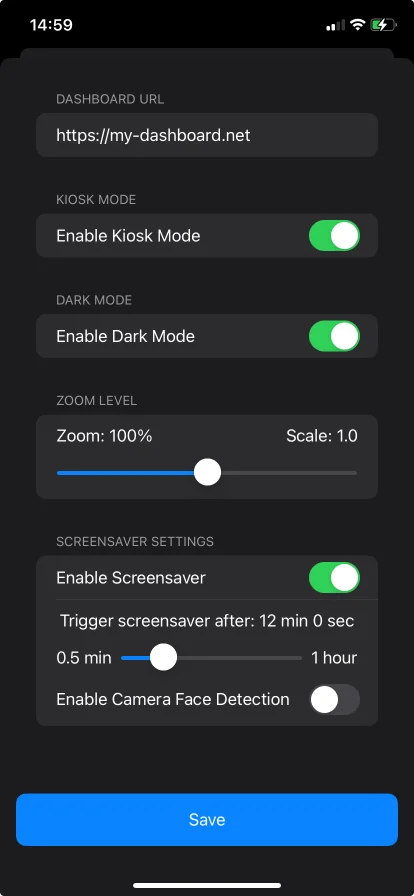
HAkiosk does not ask for your Home Assistant username and password, and it has nowhere to store them. It shows your dashboard in a web view, so you sign in on Home Assistant's own login page, inside the app, exactly as you would in a browser. The app never clears that session, so you stay signed in.
If you want a separate Home Assistant user for the panel — sensible, and it lets you give the wall tablet a narrower view than your own account — create it in Home Assistant first, then sign in as that user on the tablet.
What the "Kiosk mode" toggle really does — read this one
In the Display section there is a switch called Kiosk mode. It is easy to read that as "lock the tablet down". It is not that.
All it does is append ?kiosk=true to your URL. That parameter means something only if you have installed the kiosk-mode custom integration in Home Assistant through HACS — that add-on is what reads it and hides Home Assistant's own sidebar and top bar. Without it, the parameter is ignored and nothing changes.
So:
- Want Home Assistant's sidebar and header gone? Install the kiosk-mode add-on in HA, then leave this switch on.
- Want the device locked so nobody can leave the app? That is the Security section, further down, and it is a different thing entirely.
The app's own subtitle says as much, but the name invites the confusion, so it is worth being blunt about it.
The screen staying on is not a setting
Some guides tell you to hunt for a "Keep screen on" toggle in HAkiosk. There isn't one, and you do not need one: the app holds the screen awake for as long as it is in the foreground. That is unconditional, set the moment the kiosk window opens.
The setting you may actually want is the opposite one. A panel that blazes 24/7 in a bedroom is not always welcome, so Screensaver lets it stand down:
- Enable screensaver, then Start after — anywhere from 30 seconds to an hour, in 30-second steps.
- Blank screen turns the display off instead of showing the clock. (Without it, you get a large clock on black.)
- Proximity wake uses the tablet's proximity sensor to dismiss the screensaver when you walk up.
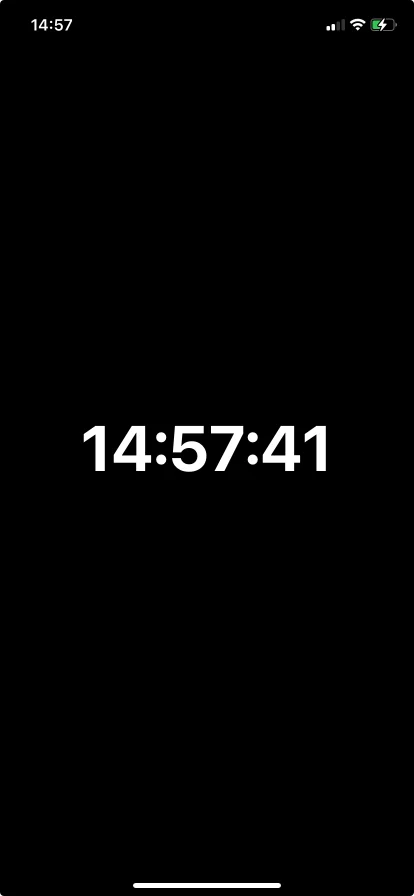
Wake-on-approach using the front camera (Camera face detection) also exists, and it is one of the paid features — see below.
Getting back to Settings once the dashboard is up
This trips up everyone once. The dashboard fills the screen and there is no visible menu button. To return to settings, press and hold the top-left corner of the screen. Press and hold the top-right corner to reload the page.
The first time you open the app, both corners are labelled on screen so the gesture is discoverable. It is deliberately a stationary long-press, so it never fires from ordinary dashboard taps and never fights Android's own edge gestures.
Actually locking the device down
This is the Security section, and it is the part that matters for a panel guests will touch. It is a Pro feature (one-time purchase, no subscription), and it works in three layers:
- Set a HAkiosk PIN, then turn on Lock this device. The PIN now guards the corner gestures and Settings.
- Turn on Android's own Screen pinning, in Settings ▸ Security ▸ Screen pinning, and enable "Ask for PIN before unpinning" with a device screen-lock PIN. HAkiosk pins itself to the foreground once this is available. If it isn't turned on, the app tells you so in the Security section rather than quietly doing less.
- Auto-start on boot brings the kiosk back after a reboot or a power cut.
And here is the honest limitation, in the app's own words: without a managed or device-owner setup, Android cannot fully block someone leaving the app. The device screen-lock PIN is what stops them unpinning it. If you skip step 2's PIN, a determined visitor gets out. For a hallway panel that is fine. For an unattended public display, do all three.
One more caveat on auto-start: Android 10 and up restrict launching an app from the background, and some manufacturers add their own "autostart manager" on top, so the boot relaunch is best-effort. The reliable route is to make HAkiosk the device's Home launcher (Android Settings ▸ Apps ▸ Default apps ▸ Home app). Then the tablet comes back to the kiosk on every boot and on every attempt to leave, without depending on the boot broadcast at all.
Making the screen react to the room (MQTT)
This one is Android-only, and it is free.
Point HAkiosk at your MQTT broker — the same one Home Assistant already talks to — and give it a base topic. Then:
- Publish
{"occupancy": true}and the screen stays awake; publish{"state": "OFF"}and the screensaver comes on. Drive that from any Home Assistant automation, motion sensor, or occupancy entity. - Send commands on
<base>/cmdto swap the URL, zoom, dark mode or screensaver on the fly — which is how you get "show the lights view when the lamp turns on" or a different dashboard per room state. - HAkiosk publishes its own status on
<base>/stateand<base>/availability, so Home Assistant can see whether the panel is alive.
The MQTT section in Settings shows a live connection chip and lists the exact topics for your base, plus a built-in guide with the payloads. You do not have to guess the contract.
Zoom and dark mode
Zoom is a slider from 0 to 200% and applies instantly, with no page reload — handy for reading a wall panel from across the room without rebuilding your dashboard.
Dark mode darkens the web page itself, not just the app frame: the web view reports a dark prefers-color-scheme, so Home Assistant renders its own dark theme. Flipping it recreates the view, so expect a brief reload.
More than one tablet
If you end up with a panel in the hall, one in the kitchen and one in the workshop, walking to each one to change a URL gets old fast. Fleet Control (also Pro) pairs your devices to a workspace you open in any browser at hakiosk.com/control:
- Push URL, zoom, dark mode or screensaver to one device or the whole fleet
- Group tablets by room, store or location and set them together
- Pull a live screenshot, refresh, wake, or lock and unlock any device remotely
- See which screens are online
- Android, iPad and iPhone devices live side by side in the same workspace
Designing the dashboard itself
Everything above is the frame. The picture is a normal Home Assistant dashboard, so all the design work happens in Home Assistant, not in HAkiosk.
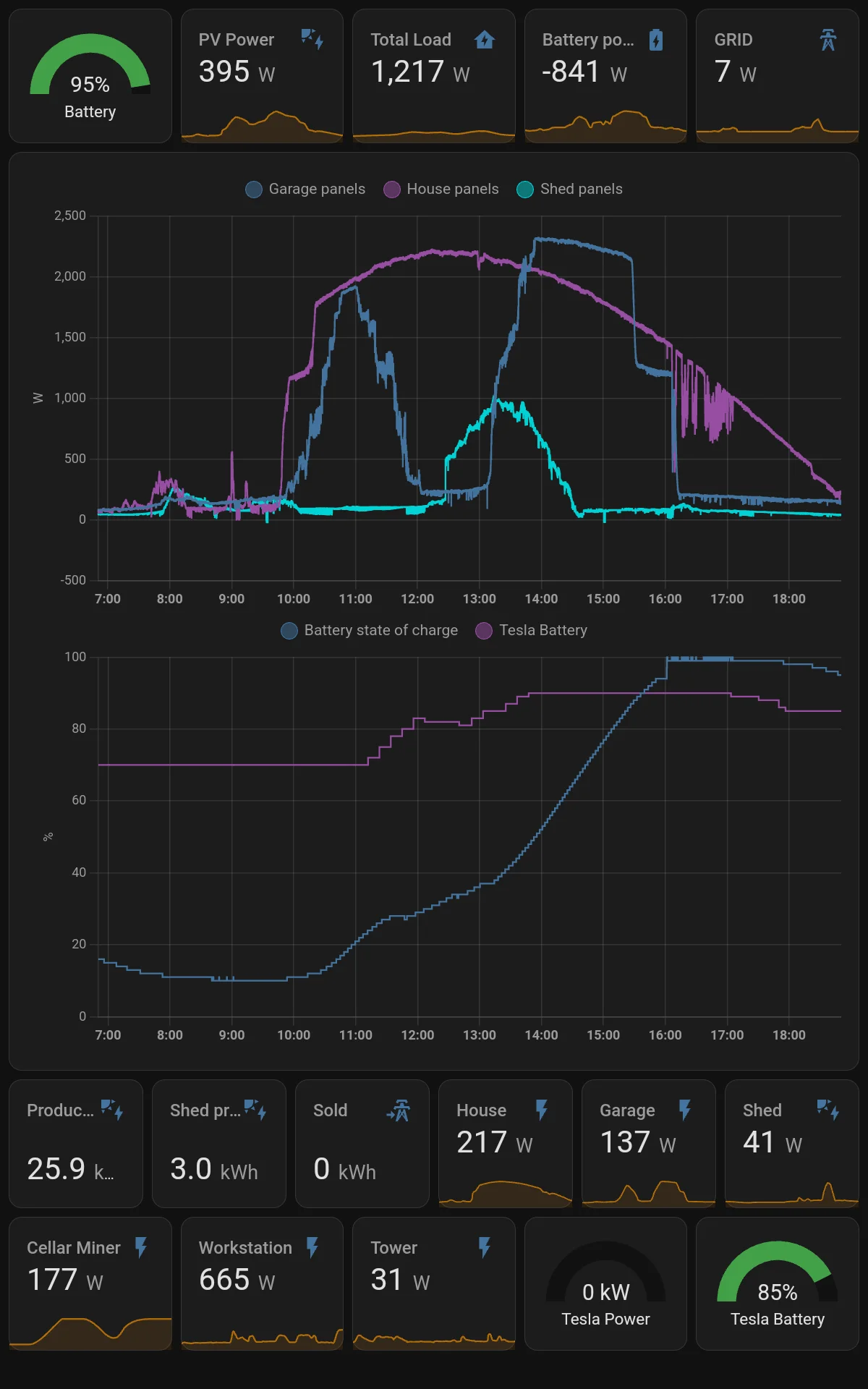
What tends to work on a wall panel:
- Fewer cards than you think. One screen, no scrolling, the five things you actually check daily.
- Entities and Picture Entity cards for lights and doors — big, obvious targets.
- Thermostat and Weather cards for the two things everyone walks up to check.
- Camera cards for a doorbell feed, if the panel is somewhere you would want that visible.
- Big touch targets. Design for a thumb at arm's length, not a mouse pointer.
- Mushroom cards (via HACS) if you want a denser, more modern look than the stock cards give.
Build a second dashboard for the panel rather than reusing your phone one. The constraints are different enough that it is faster than tuning one layout for both.
What HAkiosk does not do
Worth knowing before you plan around it:
- No branding or theming inside the app — no logo upload, no background colour, no watermark. The look comes entirely from the page you load.
- No built-in dashboard switcher. The app holds one URL. Changing it is a settings edit, an MQTT command, or a Fleet Control push.
- It does not store Home Assistant credentials. You sign in to HA itself.
- It is not a device-management (MDM) product. For a truly locked-down public terminal, Android's device-owner provisioning is the real tool; HAkiosk uses screen pinning, which is a level below that.
When something goes wrong
The page won't load. You get a themed error screen with a one-tap reload — no browser error page. Check the URL first, then whether the tablet is on the same network as Home Assistant.
You can't get out of the app. That is screen pinning doing its job; unpinning needs the device screen-lock PIN.
Screen pinning "isn't working". HAkiosk shows a warning in the Security section when Android's screen-pinning setting is off. Turn it on in Settings ▸ Security ▸ Screen pinning.
Home Assistant's sidebar is still there with Kiosk mode on. You are missing the kiosk-mode HACS add-on — see the section above.
That's the whole setup
A tablet, a URL, a mount. Add the lockdown layers if the panel lives somewhere public, add MQTT if you want the screen to notice whether anyone is in the room, add Fleet Control when one tablet turns into four.
If something in this guide doesn't match what you see on your device, tell me — hakiosk.com/support reaches me directly, and a guide that is wrong is worse than no guide.
HAkiosk is a third-party app and is not affiliated with or endorsed by the Home Assistant project or Nabu Casa.