Cafe Menu Kiosk Setup: Turn Tablet into Self-Service Menu Display (No Coding)
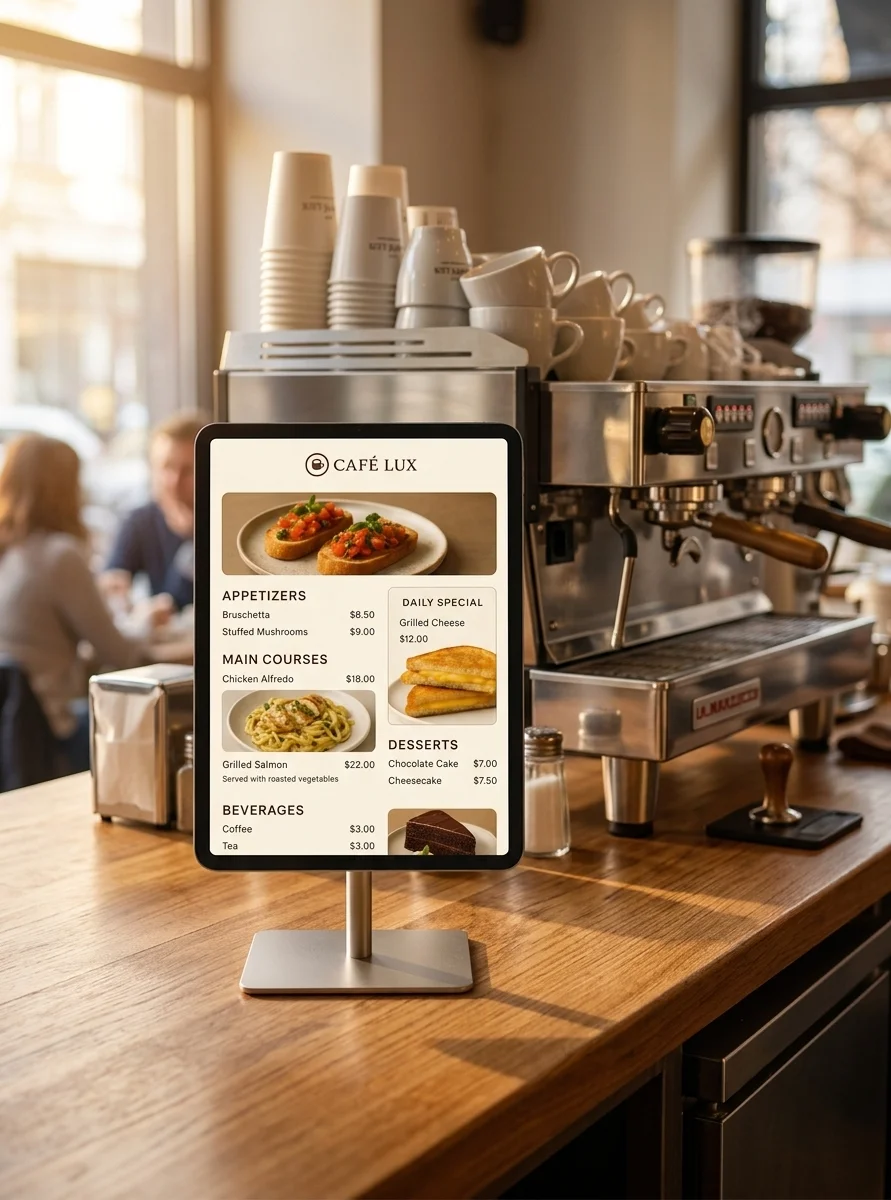
A tablet on the counter showing today's menu — items, prices, what the specials are — takes a surprising amount of load off whoever is making the coffee. It is also one of the cheapest things you can put in a café, because the hard part is not the screen. It is having the menu somewhere a screen can read.
This guide is about the screen part. I make HAkiosk, the Android app that does it, so treat me as an interested party — and let me start by drawing the line clearly, because it decides whether this guide is useful to you.
HAkiosk shows a menu. It does not make one.
HAkiosk takes one URL and displays it full screen on a tablet, with the system bars gone, the screen kept awake, and the device optionally locked so customers cannot wander off the page.
It has no menu editor. No templates, no item list, no photo upload, no colour picker, no drag-and-drop layout, no promotional banners. Nothing in the app knows what a croissant is.
That is a real constraint and it is worth stating in the first paragraph rather than the last. What it buys you is that any menu you can open in a browser works — your website, a page from your POS, a menu tool, a page you wrote yourself — and you are never blocked waiting for us to support your setup.
So the first job is the menu, not the tablet.
Getting your menu to a URL
Three routes, roughly in order of how much work they are.
You already have one. Many cafés do and forget it: the menu page on your own website, the online-ordering menu your POS publishes, a page from whatever tool made your QR-code menu during the pandemic. If it renders in a browser and you can update it, it will work on the counter.
Use a menu tool. We make one — MenuMog — and I would rather disclose that than pretend I found it lying around. It is built for exactly this: you enter items, prices and photos, pick fonts and colours, schedule daily specials so the menu changes itself by the day, handle any currency, and you get one link to share or print as a QR code. It is completely free right now, no card, no trial period — they have said pricing will come when it comes, so take that at face value rather than as a permanent promise. Other menu tools exist and any of them that produce a public page will work here just as well.
Write a page yourself. For a fixed menu on a static page, plain HTML on any host is genuinely a couple of hours and never changes again.
Test it in the tablet's browser before you buy anything
Whatever route you took, open the URL in Chrome on the tablet you intend to use, at the size and orientation you intend to mount it, and leave it there for ten minutes.
If it looks right and updates by itself, HAkiosk will show exactly that. If it needs pinch-zooming to be readable, or asks you to log in again after an hour, or only renders properly on your laptop, fix that first. A kiosk app cannot improve the page it is showing.
The tablet
Almost anything works — a menu board is a mostly-static page, not a game.
- Android 8.1 or newer. That is HAkiosk's floor, so a tablet from years ago is fine.
- Size and orientation: 8–10 inches suits a counter; decide portrait or landscape before you buy the stand, and check the menu page looks right that way.
- Placement: if customers are meant to read it while queueing, put it at the queue, not behind the till. If it is for the staff, the opposite.
- Power: it lives on the charger, so a worn battery is not a problem. Where the charging port sits is, because it decides how the cable is hidden.
- Preinstalled manufacturer apps do not matter. Once HAkiosk is the foreground app — and especially once it is the device's Home launcher — none of that is reachable.
Setting it up
Install. Search the Play Store for HAkiosk, one word. The listing reads "HAkiosk – Home Assistant Kiosk"; it began as a Home Assistant tool and displays any URL.
Paste the URL. Open the app, tap Dashboard / website URL, paste your menu's address, save. It fills the screen. That is the setup — there is no account to create and nothing to configure on our side.
Leave "Kiosk mode" switched OFF. The switch with that name in the Display section does one narrow thing: it appends ?kiosk=true to your URL, which means something only to the Home Assistant kiosk-mode add-on. On a café menu it is a stray query parameter your page never asked for. Turn it on only if you are showing a Home Assistant dashboard.
Finding your way back to Settings. Once the menu fills the screen there is no visible menu button. Long-press the top-left corner for Settings; long-press the top-right corner to reload the page. Both corners are labelled the first time the app opens.
Text too small for the queue? The Zoom slider runs from 0 to 200% and applies instantly with no reload. Set it standing where the customer will stand, not leaning over the counter.
The screen, and turning it off at night
The screen stays on by itself. HAkiosk holds it awake whenever it is in the foreground — that is unconditional, there is no toggle, and you do not need to change anything in Android.
What you may want is the opposite, for the hours you are shut:
- Enable screensaver, with Start after anywhere from 30 seconds to an hour.
- Blank screen turns the display off entirely instead of showing a clock.
- Proximity wake brings it back using the tablet's proximity sensor when someone steps up.
- Camera face detection (a paid feature) wakes it when someone is actually standing in front of it, which is the one customers find slightly magical.
For a counter tablet during service, most people leave the screensaver off and let the menu sit there.
Locking it down so a customer cannot wander off
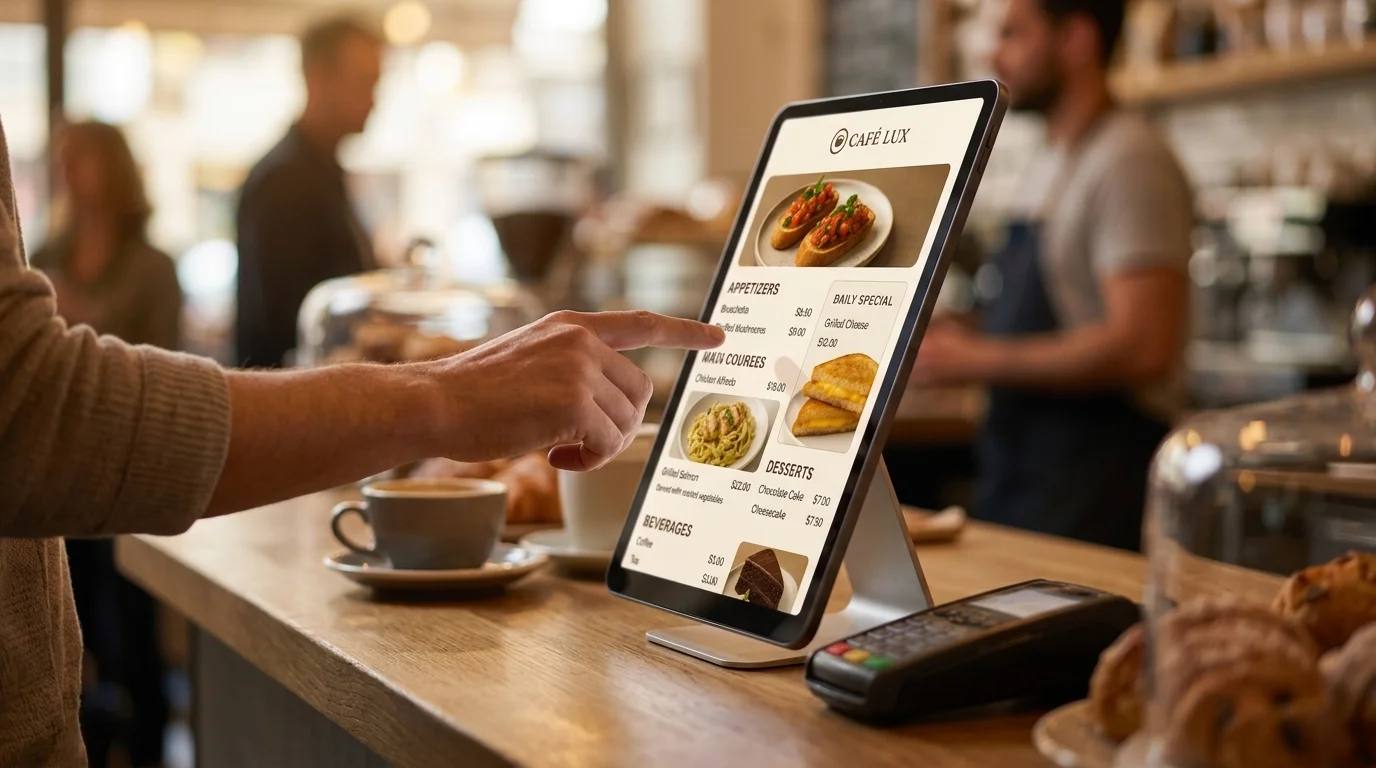
A tablet at customer height gets touched, and eventually somebody's child will find the browser. Locking it is a Pro feature — one-time purchase, no subscription — and it is three layers:
- Set a HAkiosk PIN and turn on Lock this device. The PIN then guards the corner gestures and Settings.
- Turn on Android's own Screen pinning (Settings ▸ Security ▸ Screen pinning) with "Ask for PIN before unpinning" and a device screen-lock PIN. HAkiosk pins itself to the foreground. If screen pinning is off in Android, the app tells you so instead of quietly doing less.
- Auto-start on boot brings the menu back after a power cut — which, in a café, happens.
Now the honest part, because you will read the opposite elsewhere: there is no setting that "locks the home button", and nothing here is 100% effective. Without a managed or device-owner setup, Android cannot fully block someone leaving the app. The device screen-lock PIN is what stops a person unpinning it. That is the app's own warning text, not a caveat I am adding for legal cover. In practice, all three layers is far past what a curious customer will get through in a café; if you need certainty, you need Android's device-owner provisioning, which is a different class of product.
A note on auto-start: Android 10 and later restrict launching apps from the background, and several manufacturers add their own autostart managers, so the boot relaunch is best-effort. The dependable route is making HAkiosk the device's Home launcher (Android Settings ▸ Apps ▸ Default apps ▸ Home app). Then the tablet returns to your menu after every reboot and every attempt to leave.
Changing the menu
This is the part worth understanding before your first price change.
HAkiosk does not reload the page on a timer. It loads your URL and leaves it there. A reload happens when something asks for one: a long-press on the top-right corner, an MQTT command, or a refresh pushed from Fleet Control.
For most menu tools this never comes up — the page updates itself, or it is rebuilt and the tablet picks up the change the next time it loads. But test it once: change a price from the back office, then look at the counter tablet without touching it. If it does not follow, you now know the tablet needs a nudge, and a long-press on the top-right corner is a one-second habit at opening time.
When the Wi-Fi drops
Cafés have bad Wi-Fi in basements, and a menu that vanishes mid-service is worse than no menu.
Here is the truthful position. There is no "offline mode" setting in HAkiosk — no cache toggle, no stored last-known menu, nothing you can switch on. What does exist is that the web view prefers its cache over the network, so a page that has already loaded, and whose files are still cached, will often keep rendering through a dropout. That is a helpful accident of how the app is configured, not a guarantee, and I will not sell it as a feature: it depends on your page's caching headers and on nothing having been evicted.
If the connection actually fails and the page cannot load, HAkiosk shows a themed error screen with a one-tap reload — not a browser error page, but not your menu either.
So if your Wi-Fi genuinely drops during the breakfast rush, the fix is the Wi-Fi, or a menu page built to work offline (a static page with a service worker will). Do not plan around a cache behaviour I cannot promise you.
Two screens, or ten
If the counter tablet works and you add one in the window and one by the door, changing a URL by hand three times gets old. Fleet Control (also Pro) pairs each device — scan a QR code or type a 6-digit code — to a workspace you open in any browser at hakiosk.com/control:
- Push a URL, zoom, dark mode or screensaver to one device or a whole group
- Group screens by room or location and change them together
- Pull a live screenshot to see what the window display is actually showing, from home
- Refresh, wake, lock or unlock any device remotely
- See which screens are online — each reports in every five minutes
- Android, iPad and iPhone in the same workspace
For a single café with one screen, you do not need it. For a second location, it is the difference between a drive and a click.
What it costs
HAkiosk is free to install and free to use as a display: URL, zoom, dark mode, screensaver, proximity wake and MQTT all work without paying. HAkiosk Pro is a single payment — not a subscription — and unlocks device lockdown, auto-start on boot, camera face detection and Fleet Control.
There is no free trial, and no credit card is involved, because the free version is not a demo: run it on the counter against your real menu for as long as you like, and buy Pro only if you decide you want the lock.
Start small
Put one tablet on the counter with your existing menu page for a week before buying stands for the window. You will find out whether the text is big enough from the queue, whether anyone tries to poke around, and whether your menu page updates on its own — all for the cost of a tablet you probably already own.
If something in this guide does not match what you see, tell me: hakiosk.com/support comes straight to me.