Digital Signage Kiosk Setup: Create Professional Displays on Android Tablets
A tablet on the wall showing one page, all day, is the cheapest digital signage that exists. No media player, no licence, no proprietary screen — a device you probably already have, a mount, and a permanent power cable.
I make HAkiosk, the Android app in this guide, so read me as an interested party. The most useful thing I can do here is be precise about which half of the job the app does, because getting that wrong is what wastes your afternoon.
HAkiosk is a display frame, not a signage CMS
HAkiosk takes one URL and shows it full screen on an Android tablet: no address bar, no system bars, screen kept awake, and — on Pro — the device locked so nobody wanders off the page.
What it does not do: it has no templates, no layout editor, no image library, no playlist, no scheduler, and no content management of any kind. It does not know what a menu or a room is. There is no "Menu Template" and no background picker.
So the content half stays wherever it already lives. That sounds like a limitation, and in one way it is. In another it is the whole point: anything that renders in a browser works, and you are never waiting on us to add support for your system.

What you need
- A URL that renders your content in a browser and refreshes itself. This is the real work, and it is step one below.
- An Android tablet running 8.1 or newer. That is HAkiosk's actual floor (
minSdk 27), so a genuinely ancient tablet may not qualify — check before you buy a mount for it. - A mount and a permanent power cable.
- HAkiosk from Google Play.
Step 1: get your content to a URL
Whatever you want on the screen has to exist as a web page first. Depending on what you are building, that is a Home Assistant dashboard, a slide deck published to the web, a page from your menu or booking product, or a single HTML file one of your own people wrote and dropped on a server.
Then do this test, because it takes two minutes and saves an afternoon: open that URL in Chrome on the actual tablet, sign in if it asks, and leave it alone for half an hour. If it still renders correctly and has updated itself without you touching it, HAkiosk will show exactly that. If it logs you out, or only works on your laptop, or needs a browser extension, that is a problem to fix on the content side — putting it behind a kiosk app will not fix it.
One thing worth knowing up front: HAkiosk has no refresh interval setting. If your page needs to change during the day, the page itself has to do that — a dashboard that pushes updates, a deck that auto-advances, a bit of JavaScript that reloads. There is no timer in the app that will do it for you.
Step 2: install it and point it at the URL
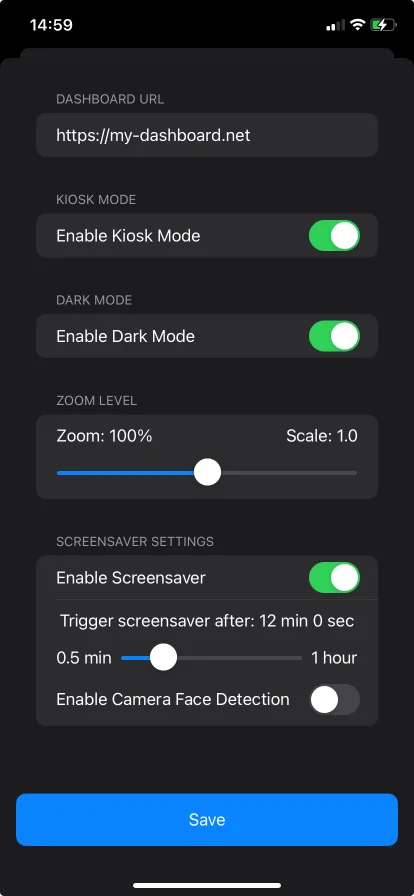
Install from Google Play, open the app, and put your URL in the first field in Settings. That is the minimum viable kiosk — you now have a full-screen page that stays on.
There is no developer mode, no root, and no permission called "Kiosk Mode" or "Display Control"; those are not Android permissions and no app asks for them. The only runtime permission HAkiosk ever requests is the camera, and only if you switch on face-detect wake, which is optional and off by default.
Step 3: the settings that actually matter for signage
Four of these are free and do most of the work:
- Zoom (0–200%). A wall screen is read from three metres away, not thirty centimetres. Zoom applies live, with no page reload, so you can walk back and adjust until it is right.
- Dark mode. This darkens the web page itself, not just the app's own chrome — which matters for a screen that is on in a dim room all evening.
- Screensaver, with a timeout from 30 seconds to an hour (the slider snaps in 30-second steps). Optional blank mode turns the screen black rather than showing a screensaver, which is the setting you want for burn-in on an always-on panel.
- Proximity mode, which uses the tablet's proximity sensor to wake the screen when someone steps up to it.
Face-detect wake — the camera watching for a person and bringing the screen back — is a Pro feature. So is auto-start on boot, below.
Step 4: make it survive being left alone
A signage screen fails in two ways: the power blips, or someone touches it.
- Auto-start on boot (Pro) brings your page back after a power cut or a reboot without anyone walking over to the tablet. For an unattended screen this is the single most valuable setting in the app.
- PIN lock and lockdown (Pro) protect the settings and navigation, and drive Android's own screen pinning so the device stays inside HAkiosk. There is a PIN to get out; a curious visitor does not find one by tapping around.
- Optional home-launcher mode relaunches your page every time someone manages to exit.
I am flagging the Pro line explicitly because it is exactly where a guide like this usually goes vague. The free tier is a real, usable kiosk — URL, full screen, zoom, dark mode, screensaver, MQTT. What you pay for is the unattended half: boot recovery, the lock, and fleet control.
Step 5: let the room drive the screen (free, Android only)
This is the part that has no equivalent in most signage setups. HAkiosk can connect to your MQTT broker and subscribe to a topic, so the screen reacts to what is actually happening in the room: blank when the space is empty, wake the moment an occupancy sensor fires, or swap to a different dashboard when a light comes on. Any Home Assistant automation, motion sensor or occupancy topic can drive it.
For a lobby or a meeting room that is empty most of the night, this is both a burn-in and an electricity story. The MQTT section is not Pro-gated.
More than one screen
If you end up running several, Fleet Control (Pro) pairs the devices and manages them from any browser at hakiosk.com/control: push a new URL, zoom, dark mode or screensaver to one device or the whole fleet, group them by room or location, refresh or wake them remotely, pull a live screenshot to see what a screen is actually showing, and see which devices are online. Android and iPad devices sit side by side in one workspace.
Being straight about it: that is the reason to pay for the app rather than the reason to start with it. One screen in one room does not need a fleet dashboard.
When HAkiosk is the wrong answer
If you need scheduled playlists, per-screen content calendars, approval workflows, or a library of designed templates, you need a signage CMS, and there are good ones. HAkiosk is the frame you put around whatever page you already have. It is a small, cheap, honest piece of the stack — and for a single wall screen showing one thing, it is usually the only piece you were missing.
HAkiosk is on Google Play. It is a third-party app and is not affiliated with or endorsed by the Home Assistant project or Nabu Casa.