Fully Kiosk Alternative for iPad: What Actually Works on iOS
Almost every guide to wall-mounted tablet dashboards ends at the same recommendation: install Fully Kiosk Browser. Then you check the App Store and it is not there.
It is not a search problem. Fully Kiosk Browser is Android only — Fully's own site lists Android and nothing else. There is no iOS build, and there is unlikely to ever be one, for a reason worth understanding before you pick a replacement.
I build HAkiosk, which is one of the iPad options below, so read this with that in mind. I have tried to be exact about what you lose coming from Fully, because the gap is real and you should know it before you buy rather than after.
Why there is no Fully Kiosk for iPad
Half of what makes Fully feel like a kiosk system on Android comes from powers Android grants apps and iOS does not. Fully can become the home launcher, start itself after a reboot, pin itself to the screen, and act as a device owner. Those are Android APIs. Apple does not offer third-party apps an equivalent.
On iPad, every kiosk app ultimately leans on the same iOS mechanism instead: Guided Access, the built-in single-app lock. What separates iPad kiosk apps from each other is how much of that setup they do for you, whether they can re-arm the lock after iOS drops it, and what they add on top — not whether they invented their own lock, because none of them can.
So the honest framing is not "which app is Fully for iPad". It is: Guided Access is your lock; what do you want running inside it?
What you can and cannot get on an iPad
Coming from Fully, this is the part that matters. Fully's feature list below is from fully-kiosk.com, checked in August 2026.
| Fully Kiosk (Android) | What is possible on iPad | |
|---|---|---|
| Fullscreen locked web page | Yes | Yes |
| Single-app lock | Screen pinning / device owner | Guided Access only |
| Auto-start after reboot | Yes | No — iOS does not allow it |
| Home launcher replacement | Yes | No |
| Motion / face detection wake | Yes | Yes (front camera) |
| Screensaver | Images and video | Clock or dimmed screen in HAkiosk; media screensavers exist in other apps |
| Local HTML / PDF / video files | Yes | Possible, but not in HAkiosk |
| REST and JavaScript APIs | Yes | Not in HAkiosk |
| NFC, QR, iBeacon, Bluetooth | Yes | Not in HAkiosk |
| Remote administration | Fully Cloud EMM | Yes — HAkiosk Fleet Control, included |
| Licensing | PLUS 8.90 € / 10.99 US$ one-time per device | HAkiosk: one-time purchase, no subscription |
Two rows in that table are permanent iOS limits, not app limits: auto-start after a reboot and home-launcher mode do not exist on iPad for any third-party app. If your tablet is somewhere you cannot reach, and it reboots after a power cut, an iPad will sit on the lock screen until a human picks it up. That is the single most important thing to know before committing an iPad to a wall.
HAkiosk as the closest iPad equivalent
Here is what it actually does, and I have kept the list to things you can check in the app on day one.
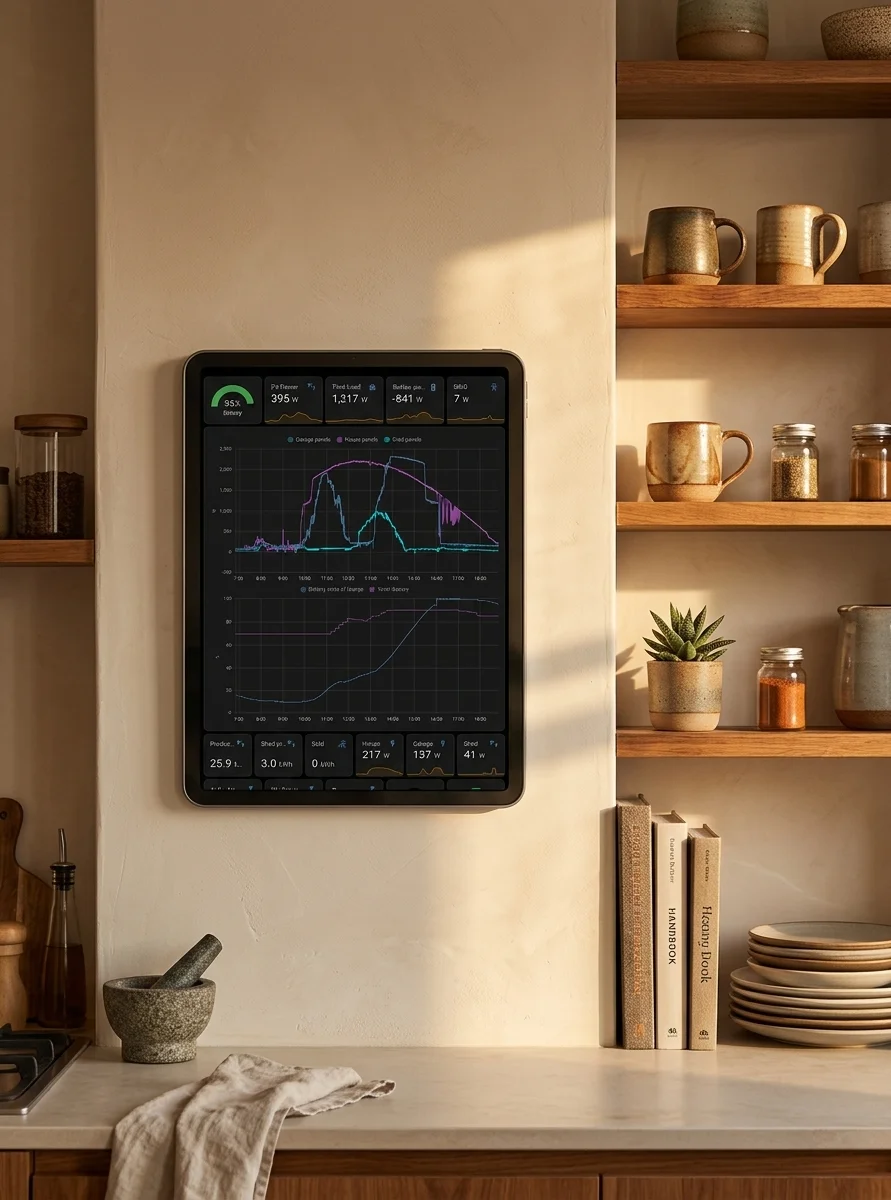
One URL, full screen. Type a web address, and that page fills the display — no status bar, no browser chrome, no address bar. A Home Assistant dashboard, a Grafana board, a menu, a photo wall, anything reachable at a URL.
PIN plus Guided Access, and the lock re-arms. Setting a PIN gates the settings swipe; turning on "Lock this device" engages Guided Access automatically. When iOS drops the Guided Access session — which it does, on an idle device — HAkiosk requests it again the moment the app is active. That re-arm is the practical difference between a panel that is still locked on day thirty and one that is not.
The setup order matters and it is where people get stuck: turn Guided Access on with a passcode in iOS Settings → Accessibility → Guided Access first, then set the PIN in HAkiosk, then switch on the lock. Without the iOS passcode the lock cannot engage; the app says so and offers a shortcut straight to the right screen.
Wake on a face, like Fully's motion detection. Turn the screensaver on with a timeout between 30 seconds and an hour, enable camera face detection, and the panel wakes when someone walks up. The screensaver itself is a clock on black, or — if you pick the blank option — the screen dimmed to zero brightness. Worth being precise: dimming is not the same as powering the panel off, so expect the backlight glow a real screen-off would not have.
Remote control from your phone, included. Sign in at hakiosk.com/control, pair the tablet once with a code or a QR scan, and you can push a new URL, change zoom, toggle dark mode, refresh, wake the screen, or pull a live screenshot of what the panel is showing right now — from anywhere. This is the closest thing to Fully's remote admin, and it is part of the app rather than a separate product.
Zoom and dark mode. Zoom is a slider up to 200%, applied live without a reload, which is how you make a page designed for a laptop readable from across a room. Dark mode darkens the interface.
One toggle that is not what it sounds like. "Enable Kiosk Mode" in settings is not the device lock. It appends ?kiosk=true to your URL, which is a signal for the kiosk-mode add-on used by Home Assistant dashboards to hide their own sidebar and header. If your display is an HA dashboard with that add-on, turn it on. Otherwise leave it off — the device lock is the PIN and Guided Access.
What you give up, plainly
Do not migrate expecting parity. Compared to Fully:
- No REST API, no JavaScript API. If you drive Fully from Home Assistant automations — screen on, screen off, load this URL, run this command — none of that has an equivalent in HAkiosk on iOS. The remote actions exist, but through Fleet Control's dashboard, not an API your automations can call. For a lot of HA users this alone is the dealbreaker, and it should be.
- No local files. No HTML, PDF or video stored on the device, and no offline copy of your page. HAkiosk fetches the URL live every time; if the network is down it shows a "Failed to load webpage" screen and does not retry on its own.
- No timed reload. If your page needs periodic refreshing, it has to refresh itself in its own JavaScript — a one-line meta refresh tag does it.
- No NFC, QR scanning, iBeacon or Bluetooth integration.
- No media screensaver. A clock, or dimmed.
- Thin black bars down the left and right edges. The app applies a 10-point margin on both sides unconditionally. It is a bug, it is on the list, and on a full-bleed dashboard you will see it.
- The two iOS limits above: no auto-start after reboot, no launcher mode.
That is a shorter feature list than Fully's, and I am not going to pretend otherwise — Fully advertises over 350 features and has been at this far longer.
When the right answer is "use an Android tablet"
If nothing is forcing you onto iPad hardware, and you want the REST API, local files, auto-start after a reboot and the deep automation hooks, then buy a cheap Android tablet and buy Fully. It is a genuinely good piece of software at 8.90 € one-time, and no iPad app will close the auto-start gap, because iOS does not allow it.
Reach for an iPad kiosk app when the iPad is already the constraint: you have one spare, the household or office is Apple, or the mount and the hardware are already on the wall.
And if you are on Android but wanted the Home Assistant angle specifically, HAkiosk has an Android build too — it adds screen pinning, home-launcher mode, auto-start after a reboot, and MQTT control that Fully-style automation users will recognise. MQTT is Android-exclusive in HAkiosk; iOS does not have it.
Setting it up on an iPad, start to finish
- Install HAkiosk from the App Store — one word, no space. Searching "HA Kiosk" may not find it.
- Swipe in from the left edge to open settings and enter your URL. Save, and check it renders.
- Set zoom if the page was designed for a bigger screen, and turn on dark mode if you want it.
- Screensaver, if you want the panel to sleep: turn it on, pick a timeout, and enable camera face detection so it wakes as you approach.
- Guided Access first, then the lock. iOS Settings → Accessibility → Guided Access, on, with a passcode. Back in HAkiosk: set a PIN, then turn on "Lock this device".
- Pair with Fleet Control at hakiosk.com/control before the tablet goes on the wall. Pairing a device you can no longer reach is harder than pairing one in your hand.
- Plug it in. The app deliberately keeps the screen awake, so plan on mains power.
If your panel is a Home Assistant dashboard specifically, there is a longer walkthrough with the HA-side details in Best iPad Kiosk App for Home Assistant Dashboards in 2026.
Questions, or something here that did not match what you found? Write to me at hakiosk.com/support. I answer — including when the answer is "stay on Android".