Make Your Home Assistant Wall Tablet Wake When You Walk Up
A wall tablet that has gone dark is doing its job. A wall tablet you have to wake with a tap, every single time, is a light switch with extra steps.
This comes up constantly among people building Home Assistant wall panels. One r/homeassistant user put the problem plainly while shopping for a wall display:
"Having a lot of trouble getting my wall mounted sp6 to turn on/off with presence detection using motion sensor. I can get the screen to turn off via HASS but unable to wake up the screen without physically pressing the power button."
Turning the screen off is easy. Getting it to come back on by itself is the part that stalls people.
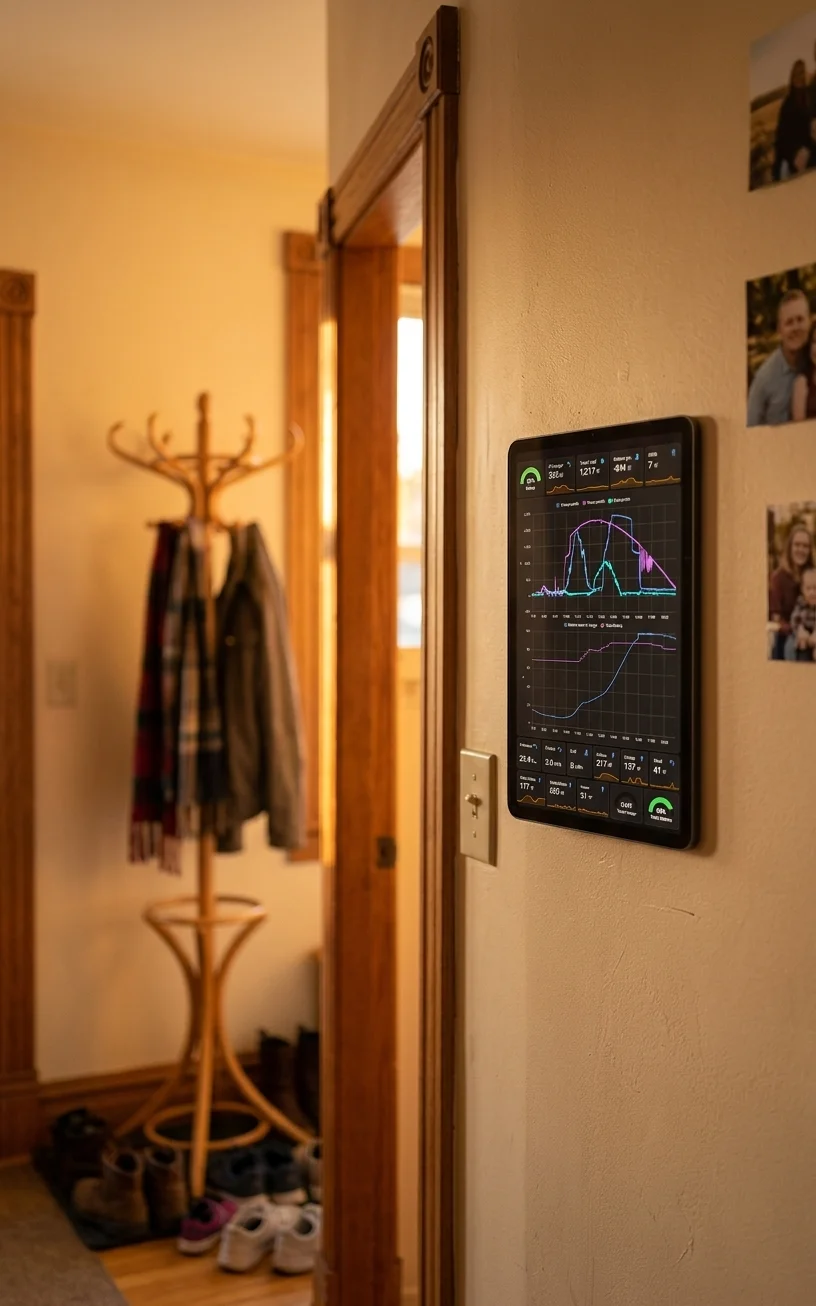
HAkiosk has three ways to do it, and they are genuinely different — different hardware, different range, different platforms. Here is what each one actually does, so you can pick the one that fits your wall.

1. A motion sensor, over MQTT (Android, free)
This is the Home Assistant-native answer, and if you already own a motion or presence sensor it is the best one. HAkiosk on Android connects to your MQTT broker and listens on a command topic. Your automation publishes to it:
{"action": "wake"}
and the screensaver goes away. Publish this to put it back:
{"action": "screensaver"}
So a hallway sensor firing in Home Assistant becomes an automation that wakes the panel, and a five-minute no-motion condition sends it back to sleep. The tablet does not have to detect anything — your existing sensors already do, and they see the whole room rather than the metre in front of the glass.
The same command topic also accepts refresh, screenshot, and url, so the same automation that wakes the screen can decide what is on it. That is worth knowing if you have been looking for a way to push a specific dashboard to a panel when something happens.
Two honest limits. MQTT control is Android only — the iPhone and iPad app does not have it. And it needs a broker, which in practice means you are already running Home Assistant, which is nearly always true for the people asking this question.
2. The front camera (Pro on Android, included on iPhone and iPad)
No extra hardware, no broker, no automation. The tablet's own front camera watches for a face, and when it sees one the screen comes back.
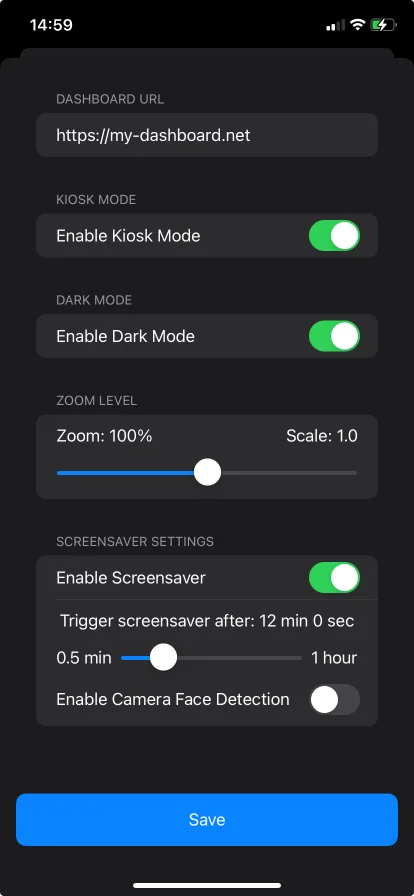
What it is doing under the hood, precisely: it looks for a face, not for movement. A cat crossing the room will not wake the panel; a person standing in front of it will. On Android this runs through ML Kit at about two frames a second, on iPhone and iPad through Apple's Vision framework.
Everything happens on the device. No frame is written to storage, and none is uploaded — the detector's only output is a yes/no that resets the screensaver timer. HAkiosk asks for the camera permission the first time you switch it on, and on Android the feature stays off until you turn it on and only runs while the screensaver is enabled and HAkiosk is the app in front. It is not a camera that watches your hallway all day.
The trade-off worth stating: the camera has to be able to see your face. A tablet mounted above eye level, or angled down at a desk, or in a dark hallway, will be less reliable than a motion sensor pointed at the doorway. Range is roughly "close enough to read the screen", not "somewhere in the room".
Camera face-detect wake is a Pro feature on Android. On iPhone and iPad it is part of the app.
3. The proximity sensor (Android, free)
The one most people miss. Android phones and many tablets have a proximity sensor next to the front camera — the one that blanks your screen during a call. HAkiosk can use it to dismiss the screensaver.
Set expectations correctly on this one: it triggers at roughly five centimetres. That is a deliberate hand-wave in front of the panel, not walking past it. As a no-hardware, no-permission, no-broker option it is genuinely useful — it turns "tap the screen" into "wave at it", which matters if the panel is in a kitchen and your hands are covered in flour. It is not presence detection.
Which one should you use?
- You already have a motion or presence sensor in Home Assistant — use MQTT. Better range, whole-room awareness, and the same automation can control what the dashboard shows. Android only.
- You want it to just work with no extra hardware, or you are on an iPad — use camera face detection. Mount the tablet where it can see a face.
- You want the cheapest possible improvement over tapping — turn on proximity wake and wave at it. Android only.
They are not exclusive. Motion over MQTT for the room plus the camera as a backstop is a reasonable belt-and-braces setup on an Android panel.
Setting the screensaver up in the first place
All three need a screensaver to dismiss, so start there: Settings → Screensaver Settings → Enable Screensaver, then set the timeout. Anything from thirty seconds to an hour. Choose the clock, or the blank option if you want the panel to disappear into the wall at night.
One caveat for iPhone and iPad owners, because it is the thing people write to us about: the blank screensaver dims the display rather than putting the device fully to sleep. If what you want is a truly dark screen overnight, that is worth knowing before you mount anything.
Then turn on whichever wake method fits, and stop tapping your wall.
HAkiosk is a third-party app and is not affiliated with or endorsed by the Home Assistant project or Nabu Casa.