Office Booking System Kiosk: Setup Guide for Android Devices
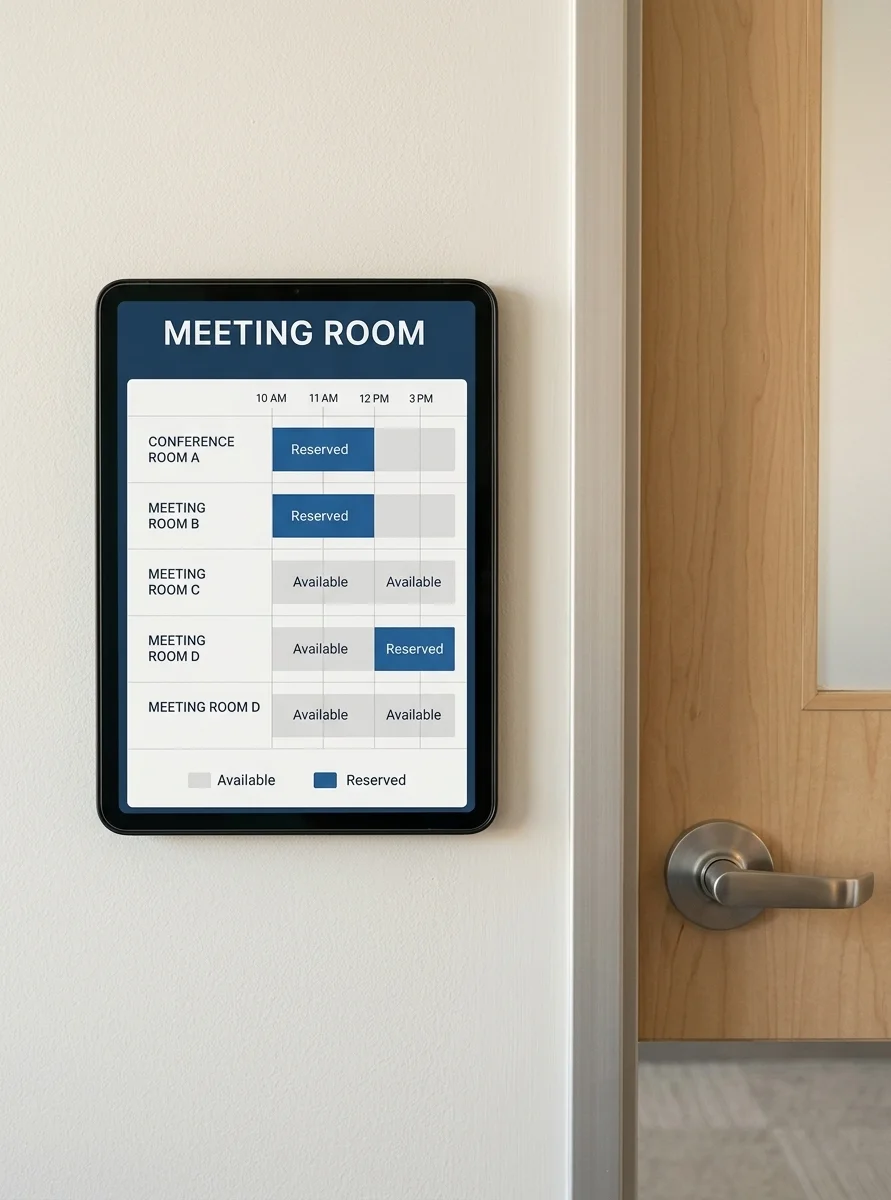
A tablet on the wall outside a meeting room, showing who has it and until when, ends most of the arguments about who has it and until when. It is a small thing that removes a recurring annoyance, and it costs a spare tablet, a mount, and an afternoon.
I make HAkiosk, the app in this guide, so read me as an interested party. The first thing I want to be clear about is what the app is not, because getting that wrong wastes your afternoon.
HAkiosk is not a booking system
It is the display frame. HAkiosk takes one URL and shows it full screen on an Android tablet, with the system bars gone, the screen kept awake, and — if you want it — the device locked so nobody wanders off the page.
The booking logic stays where it already is: your calendar, your room-booking product, your own internal page. HAkiosk does not talk to Google Calendar or Microsoft 365, does not hold API tokens, does not know what a "room" is, and has no booking templates. If you need software that manages reservations, you need that software; HAkiosk puts its screen on the wall.
That sounds like a limitation, and in one way it is. In another it is the whole point: any booking system with a web interface works, and you are never waiting on us to add support for yours.
What you need before you start
- A URL that renders your room's schedule in a browser. Depending on your setup that is an embedded calendar view, a room-display page from your booking product, a Home Assistant dashboard fed by a calendar integration, or a page one of your own developers put together.
- An Android tablet, 8.1 or newer (that is HAkiosk's floor).
- A mount and a permanent power cable.
- HAkiosk from the Play Store.
Test the URL in the tablet's own browser first. Open it in Chrome on the actual tablet, sign in if it asks, and leave it for ten minutes. If it renders correctly and updates by itself, HAkiosk will show exactly that. If it needs a login every hour, or only works on your laptop, or shows nothing without a browser extension, that is a problem to solve on the booking-system side — putting it behind a kiosk app will not fix it.
I cannot tell you what your particular booking product exposes; that is a question for its documentation or its administrator. What I can tell you is the test above, and that it takes two minutes and saves an afternoon.
One question worth asking early: does the page refresh itself?
This is the single most important detail for a booking display, and it is easy to miss until a Tuesday morning when the tablet is showing Monday's schedule.
HAkiosk does not reload the page on a timer. It loads your URL and leaves it there. A reload happens when something asks for one — a long-press on the top-right corner of the screen, an MQTT command, or a refresh pushed from Fleet Control.
Most calendar and room-display pages refresh themselves, either on a timer or over a live connection, so this is usually a non-issue. But check it, the same way you checked the URL: leave the page open on the tablet, book something from your laptop, and see whether the tablet notices without being touched. If it does not, either the page needs a refresh mechanism of its own (a <meta http-equiv="refresh"> tag is the crude, effective answer for a page you control), or you drive the reload over MQTT — see below.
Choosing and placing the tablet
Almost any tablet works. A room display renders a mostly-static page; it is not demanding.
- Screen size: 8–10 inches reads well from a corridor. Bigger looks better beside a large glass wall.
- Orientation: decide portrait or landscape before buying mounts, and check that your booking page looks right that way. Most room-display pages are designed for landscape.
- Height: eye level beside the door handle, not up near the ceiling. People read it while walking past.
- Power: the tablet lives on the charger permanently, so battery condition does not matter. Where the charging port sits does — it decides how the cable is routed and whether the mount covers it. Check before you drill.
- Bloatware: it genuinely does not affect a kiosk. Once HAkiosk is the foreground app, and especially once it is the device's Home launcher, whatever the manufacturer preinstalled is out of the way.
Setting it up
Install. Search the Play Store for HAkiosk — one word, no space. The listing is "HAkiosk – Home Assistant Kiosk" (it started life as a Home Assistant tool; it displays any URL).
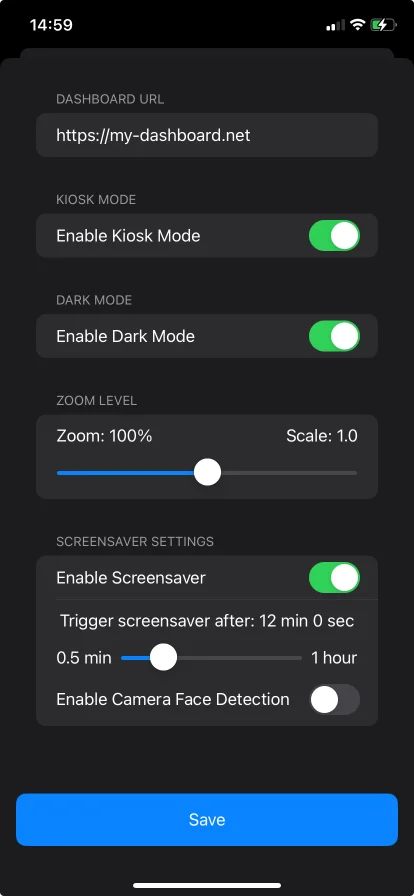
Paste the URL. Open the app, tap Dashboard / website URL, paste your booking page's address, save. It loads full screen. That is the setup.
If the page needs a login, sign in inside the app, on the page's own login screen, exactly as you would in a browser. HAkiosk never clears that session, so a page that keeps you signed in stays signed in. A page that expires its session daily will expire it here too — worth knowing before it happens on a Monday.
Leave "Kiosk mode" OFF. This is where people trip. The switch labelled Kiosk mode in the Display section does one narrow thing: it appends ?kiosk=true to your URL, which is meaningful only to the Home Assistant kiosk-mode add-on. On a Google Calendar view or a booking-product page, it appends a query parameter your page did not ask for — at best ignored, at worst confusing. Turn it on only if you are displaying a Home Assistant dashboard and you have that HACS add-on installed.
Getting back to Settings. Once the page fills the screen there is no menu button. Long-press the top-left corner for Settings; long-press the top-right corner to reload. Both corners are labelled the first time you open the app.
Keeping the screen sensible
The screen stays on by itself — HAkiosk holds it awake whenever it is in the foreground, and there is no toggle for that because there is nothing to configure.
What you probably want for an office is the opposite: a display that stands down overnight and wakes when someone walks up.
- Enable screensaver with Start after anywhere from 30 seconds to an hour.
- Blank screen turns the panel off entirely rather than showing a clock — the right choice for a corridor at 3 a.m.
- Proximity wake dismisses the screensaver using the tablet's proximity sensor.
- Camera face detection (a Pro feature) wakes the display when someone is actually standing in front of it, which is the version people notice.
Locking the tablet down
A display in a corridor gets touched. Locking it down is a Pro feature — one-time purchase, no subscription — and it is three layers, not one:
- Set a HAkiosk PIN, then turn on Lock this device. The PIN now guards the corner gestures and Settings, so a curious visitor cannot open the settings screen.
- Turn on Android's Screen pinning (Settings ▸ Security ▸ Screen pinning) and enable "Ask for PIN before unpinning", with a device screen-lock PIN set. HAkiosk pins itself to the foreground. If screen pinning is off, the app says so in its Security section rather than pretending to be locked.
- Auto-start on boot brings the display back after a power cut.
The honest limit, in the app's own words: without a managed or device-owner setup, Android cannot fully block someone leaving the app — the device screen-lock PIN is what stops them unpinning it. If your building has proper MDM, use it; HAkiosk works fine underneath it. If it does not, do all three layers above and you are well past what a passer-by will get through.
On auto-start: Android 10 and later restrict launching apps from the background, and several manufacturers add their own autostart managers, so the boot relaunch is best-effort. The dependable route is making HAkiosk the device's Home launcher (Android Settings ▸ Apps ▸ Default apps ▸ Home app). Then the tablet returns to the booking page after every reboot and every attempt to leave, without relying on the boot broadcast.
Twelve rooms, not one
One tablet is a settings screen. Twelve tablets across three floors is a job, and walking the building to change a URL is the job you will do repeatedly if you do not plan for it.
Fleet Control (Pro) pairs each device to a workspace you open in a browser at hakiosk.com/control. Pair a tablet by scanning a QR code or typing a 6-digit code, then:
- Push a URL to a whole group at once. Group displays by floor or zone; change the booking URL on the group and every room follows.
- See which display went offline. Every paired device reports a heartbeat every five minutes, so you find the fourth-floor tablet that dropped off Wi-Fi before someone walks down to reception to mention it.
- Refresh, wake, lock or unlock any device remotely, and pull a live screenshot to see what a room is actually showing.
- Android, iPad and iPhone devices sit in the same workspace, so a mixed fleet is one list.
The MQTT option, if you already run it
Android-only, and free. If your office already has an MQTT broker — plenty of buildings run one behind their automation — HAkiosk can subscribe to it. That gives you two things a booking display genuinely benefits from:
- Reload on demand. Publish a command on
<base>/cmdand the page reloads. That is the missing timer, driven from whatever already knows a booking changed. - Screen follows occupancy. Publish
{"occupancy": true}to keep the display awake,{"state": "OFF"}to send it to the screensaver — so a floor's panels sleep when the floor is empty.
HAkiosk also publishes its own state and availability topics, so your automation can tell whether a panel is alive. The MQTT section in Settings lists the exact topics for your base and includes the payload examples; you are not reverse-engineering a contract.
Troubleshooting the things that actually happen
The page shows a themed error screen with a reload button. The URL did not load. Check it in the tablet's browser — same network, same address, same certificate situation.
The schedule is stale. Almost always the page not refreshing itself. Go back to the refresh question above.
You cannot get out of the app. That is screen pinning working. Unpinning needs the device screen-lock PIN.
The Security section warns about screen pinning. Android's screen-pinning setting is off; turn it on in Settings ▸ Security ▸ Screen pinning.
Text is too small from the corridor. The Zoom slider runs 0–200% and applies instantly with no reload. Set it standing where people will actually stand.
What this costs
HAkiosk is free to install and free to use as a display: URL, zoom, dark mode, screensaver, proximity wake, and MQTT all work without paying anything. HAkiosk Pro — one payment, not a subscription — unlocks device lockdown, auto-start on boot, camera face detection, and Fleet Control. There is no trial period, because you can run the free version on a real tablet against your real booking page for as long as you like before deciding whether the locking and fleet parts are worth it to you.
Start with one room
Mount one tablet outside one room, point it at the booking page, live with it for a week. You will learn whether your page refreshes itself, whether the screensaver timing suits the corridor, and whether landscape was the right call — all before you buy eleven more mounts.
If something here does not match what you see, tell me: hakiosk.com/support reaches me directly.