HAkiosk support
Answers to what people ask most, by topic. Each section has its own link, so you can send it on. If your question is not here, write to me; I read every message.
Setting up
How do I set up HAkiosk on an iPad or iPhone?
HAkiosk needs iOS or iPadOS 15 or newer. Open the app and swipe in from the left edge of the screen to open Settings. Enter the address of your dashboard or website and press Save. A swipe in from the right edge reloads the page.
How do I set up HAkiosk on Android?
HAkiosk needs Android 8.1 or newer. Press and hold the top-left corner of the screen to open Settings, enter the address and save. Press and hold the top-right corner to reload. The app keeps the screen on and hides the system bars.
The settings gesture does nothing.
If a PIN is set, the gesture asks for it first. On an iPad, start the swipe right at the screen's left edge. On Android, hold the very corner for a moment; taps elsewhere still reach the page.
Home Assistant login and kiosk mode
Do I have to sign in to Home Assistant every time?
No. Sign in once inside HAkiosk and the session is kept, the way a browser keeps it. You can give the panel its own Home Assistant user.
How do I hide Home Assistant's header and sidebar?
Install the kiosk-mode add-on from HACS, then turn on Kiosk mode in HAkiosk. HAkiosk adds ?kiosk=true to the address and the add-on hides the header and the sidebar. Kiosk mode is on by default on Android and off on iOS.
Can I use Assist voice on the panel?
On iPad and iPhone, yes, since version 1.6: the app asks for microphone permission the first time you tap the Assist microphone. To turn it on later, open iOS Settings → HAkiosk → Microphone.
MQTT and Home Assistant discovery
How do I connect HAkiosk to MQTT?
In Settings → MQTT, turn on Enable MQTT and enter your broker's address, port (usually 1883), a username and password if the broker uses them, and a base topic such as hakiosk/hallway. The Mosquitto add-on in Home Assistant works with your usual Home Assistant login. MQTT is on both iOS (1.6) and Android (2.2), and free on both.
How does the tablet appear in Home Assistant?
Turn on Announce to Home Assistant. Home Assistant creates one device with battery, charging, presence, a Screensaver switch and a Refresh button. Fill in Name in Home Assistant before you save, because Home Assistant names the entities from it. Turning Announce off removes the device again.
Which commands can Home Assistant send?
Publish JSON to hakiosk/hallway/cmd; the table below lists them. With Base topic carries occupancy on, send {"occupancy":true} to the base topic to wake the screen and {"occupancy":false} to show the screensaver. The tablet reports its settings, battery, charging, screensaver and presence on hakiosk/hallway/state, and online or offline on hakiosk/hallway/availability.
How do I keep the tablet available in Home Assistant?
Keep HAkiosk on screen, as a wall panel is. The tablet tells the broker when it goes offline, so Home Assistant always shows whether the panel is there. On an iPad you want Home Assistant to wake, leave Allow device standby off. Keep the broker on your local network.
Can I wake the screen from a webhook or another system?
Yes, through MQTT: a Home Assistant automation or a Node-RED flow can turn a webhook into an MQTT message to the tablet.
| Command | What it does |
|---|---|
{"action":"wake"} | Wakes the screen |
{"action":"screensaver"} | Shows the screensaver |
{"action":"refresh"} | Reloads the page |
{"action":"url","url":"https://…"} | Opens another page |
{"action":"set","zoom":120,"darkMode":true} | Changes settings: url, zoom, darkMode, kioskMode, screensaverEnabled, screensaverTimeout, screensaverBlank |
{"action":"screenshot"} | Sends a screenshot to Fleet Control (paired tablets only) |
The photo screensaver (Immich)
How do I show my photos on the screensaver?
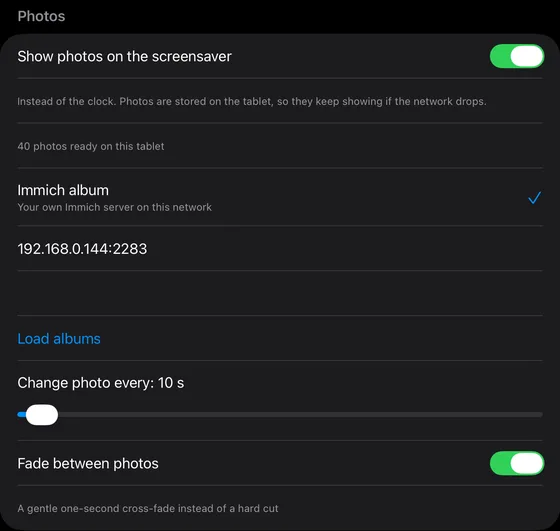
Settings → Photos → Show photos on the screensaver. Choose Immich album, type your server's address (192.168.1.20:2283 is fine) and an API key, press Load albums and pick one. Change photo every sets the pace, from 5 seconds to 5 minutes.
Does it need the network all the time?
No. Up to 120 photos are downloaded to the tablet, and the screensaver shows them from there. If the server or the Wi-Fi is down, it keeps showing the photos it has and Settings says so. It checks the album for changes when it starts, when you save, and every six hours.
Which photo sources work?
An Immich album on both platforms, and on Android a folder on the tablet as well. On the iPad you can turn on a one-second fade between photos.
Locking the device
What does the HAkiosk PIN protect?
The PIN guards the settings and the reload gesture, so a visitor cannot change the page. After five wrong tries on an iPad the PIN screen waits a minute. If you forget it on a tablet paired with Fleet Control, reset it at hakiosk.com/control. On Android the PIN is part of Pro.
How do I stop people leaving the app?
Use the device's own single-app lock: Guided Access on an iPad or iPhone, screen pinning on Android (with Pro). The steps for both are below.
Can the tablet start HAkiosk by itself?
On Android, yes. Choose HAkiosk as the Home app and it is what the tablet shows after the lock screen; with Pro it also starts again after a reboot. On an iPad, Guided Access keeps HAkiosk on screen.
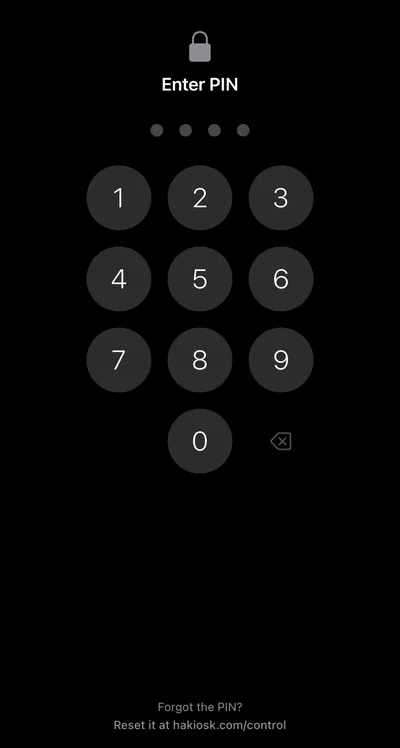
The HAkiosk PIN only protects this app's settings and admin swipes. To also stop visitors from exiting HAkiosk into other apps, enable your device's built-in single-app lock. HAkiosk engages it automatically when you turn Lock on.
On iPad or iPhone (Guided Access)
- 1Open iOS Settings → Accessibility → Guided Access.
- 2Turn the Guided Access toggle ON.
- 3Tap Passcode Settings → Set Guided Access Passcode and pick 4 digits. Tip: use the same PIN as in HAkiosk so visitors only ever see one prompt.
- 4Open HAkiosk and turn Lock this device on (in the in-app Settings or from hakiosk.com/control). HAkiosk engages Guided Access automatically.
- 5To temporarily leave HAkiosk: triple-click the Top (power) / Home button, enter the Guided Access passcode, tap End.
On Android (Screen Pinning)
- 1Open Settings → Security → Screen Pinning (path varies by manufacturer — Samsung calls it "Pin windows").
- 2Turn Screen Pinning ON. Enable "Ask for PIN before unpinning" (or biometric).
- 3Open HAkiosk and turn Lock this device on (in the in-app Settings or from hakiosk.com/control). HAkiosk engages Screen Pinning automatically.
- 4To temporarily leave HAkiosk: swipe up and hold (gesture nav) or press Back + Recents at the same time (3-button nav), then enter your unlock PIN.
These are one-time iPad / Android setup steps. Once configured, HAkiosk handles the rest.
When the screen sleeps and wakes
When does the screensaver start?
After the time set in Settings, from 30 seconds to 60 minutes; one minute on a new install. It shows a clock, a blank screen or your photos.
What wakes it?
A touch; a face, if you turn on face detection (on Android, part of Pro); an MQTT message; a command from Fleet Control; and on Android the proximity sensor, on tablets that have one. Face detection works best with the tablet at head height, and on an iPad needs camera access in iOS Settings → HAkiosk.
Can the iPad sleep overnight?
Yes. HAkiosk keeps the screen on by default. Turn on Allow device standby and the iPad locks on its own Auto-Lock timer (iOS Settings → Display & Brightness) and wakes at a touch. On a panel you want Home Assistant or Fleet Control to wake, leave it off.
When the network drops
What does the Android app show offline?
It keeps the last loaded page on screen whenever it can and shows an Offline badge. When it cannot, it shows a No network notice, or your own message, picture or page if you choose one. It reloads by itself when the network is back.
What does the iPad show offline?
When the network is back, swipe in from the right edge to reload the page. The photo screensaver keeps running from the photos stored on the tablet.
Fleet Control pairing
How do I pair a tablet?
Sign in at hakiosk.com/control with Google, Apple or email and press Pair device. On the tablet, open Settings → Pair with hakiosk.com and scan the QR code, or type the 6-digit code. Fleet Control is included on iPad and iPhone and part of Pro on Android.
A paired tablet shows as offline.
Each tablet checks in every five minutes, and commands wait until it is back online. Check its Wi-Fi first, and on an iPad make sure Allow device standby is off.
Licences and purchases
How is HAkiosk paid for?
On iPad and iPhone, HAkiosk is a paid app with everything included and no in-app purchases. On Android it is free, and HAkiosk Pro is a one-time in-app purchase. There is no subscription on either.
I reset or replaced my tablet. Do I pay again?
No. On iOS, download it again with the same Apple ID. On Android, Pro belongs to your Google account: open Settings → HAkiosk Pro and press Restore purchase.
How do I get a refund?
Purchases go through the App Store and Google Play, so refunds do too: ask Apple or Google, the way you would for any app.
What is the legacy APK in the footer?
An older Android build (1.4) for devices without Google Play. On any device with Google Play, install the current version from there.
Write to me
Email is the quickest way. Tell me the device, the iOS or Android version, the HAkiosk version, and what you expected to happen; a screenshot helps.
I usually reply within a day.
Help fund HAkiosk
If HAkiosk is useful to you and you want to help pay for test devices and hosting, you can chip in on PayPal.
Support on PayPal