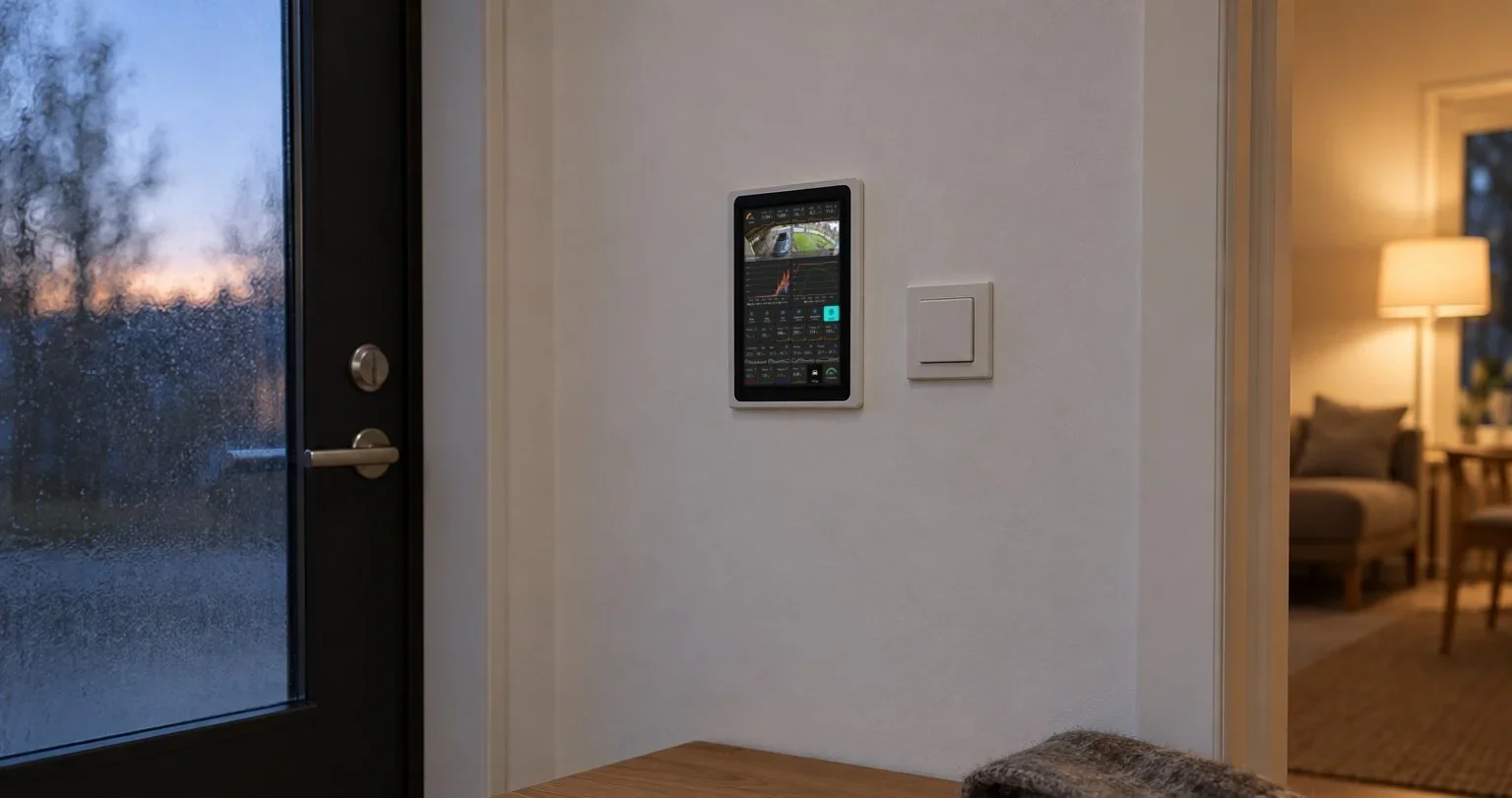
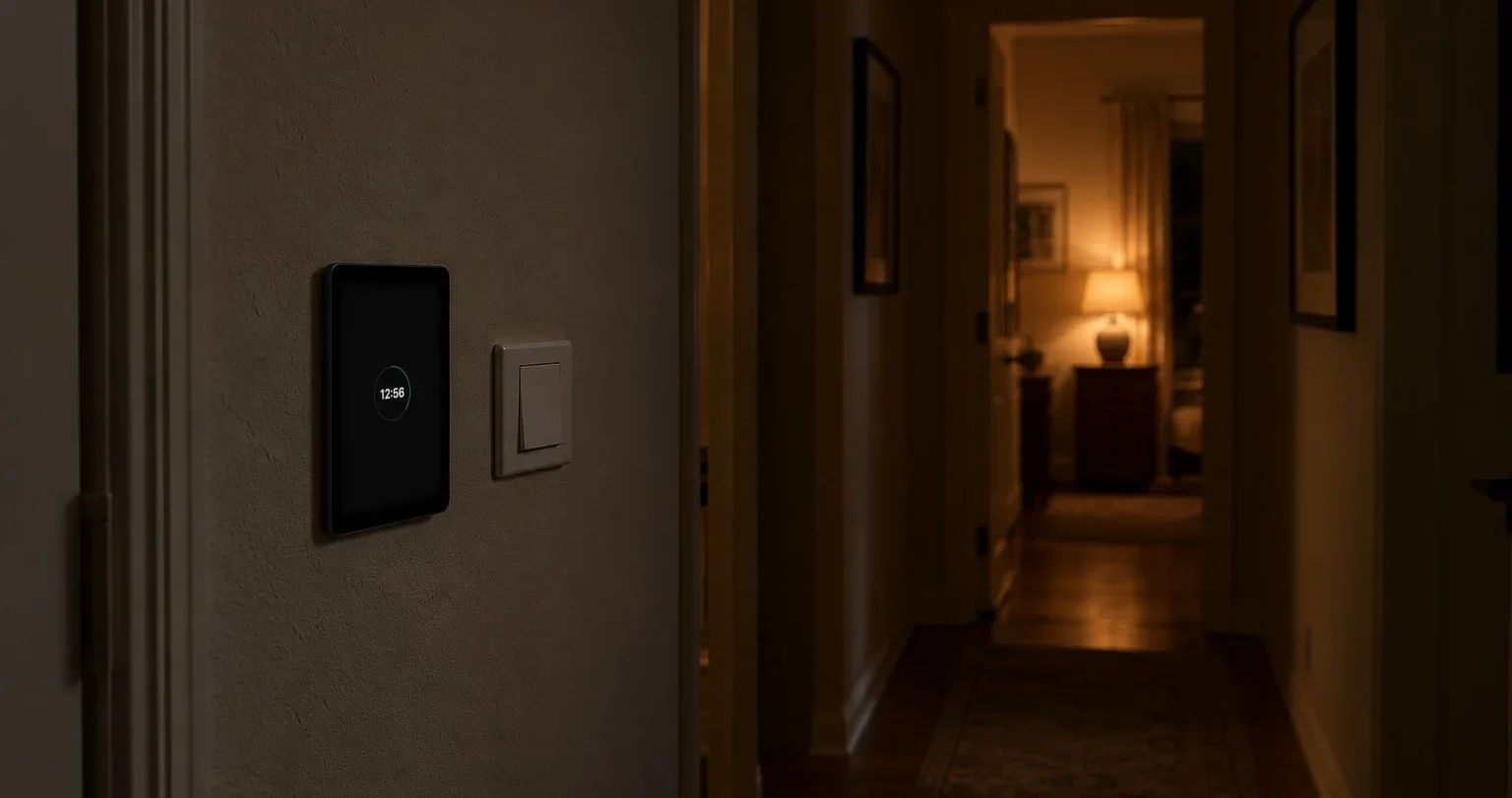
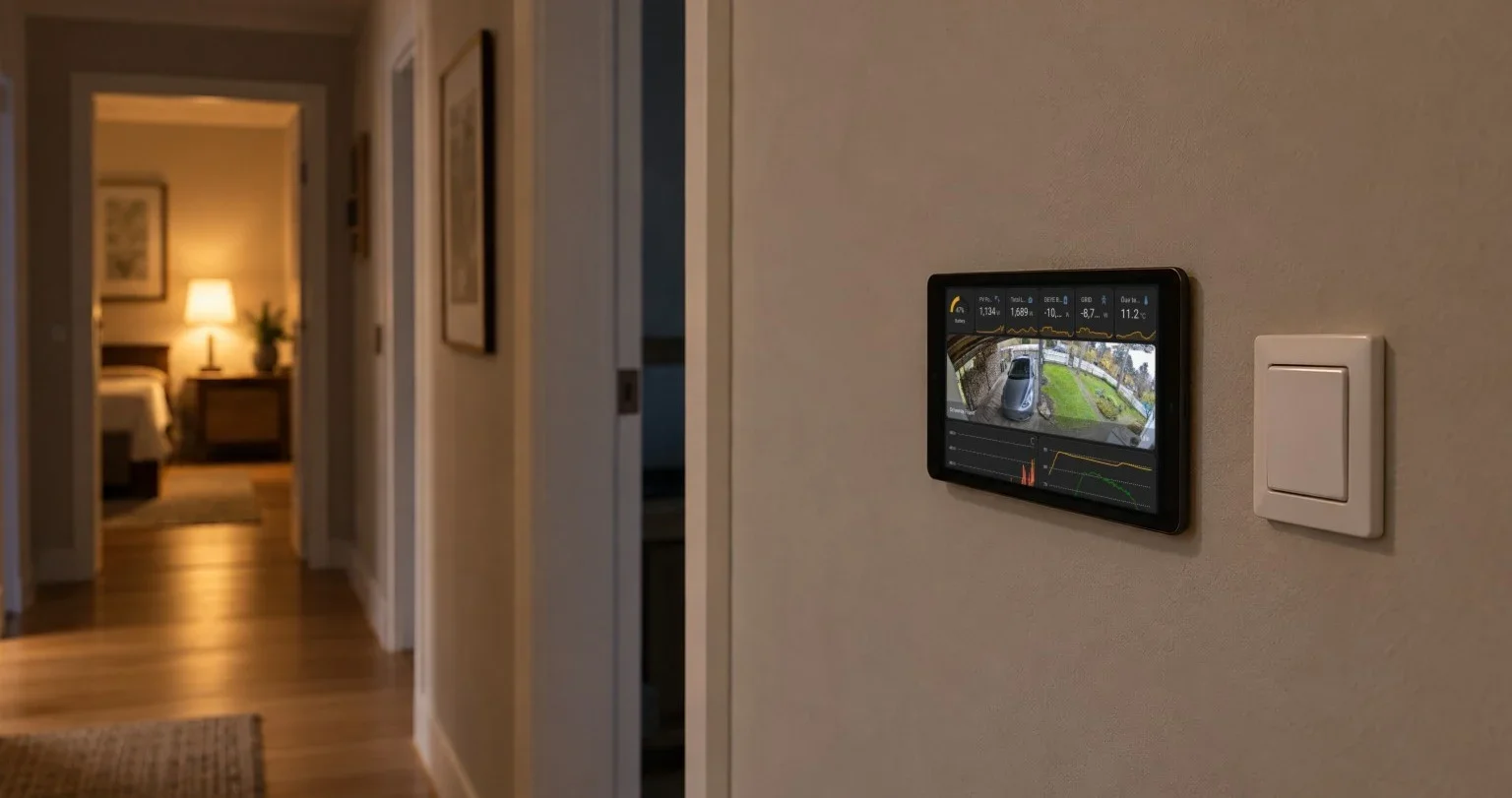
An Immich photo frame on your Home Assistant wall tablet
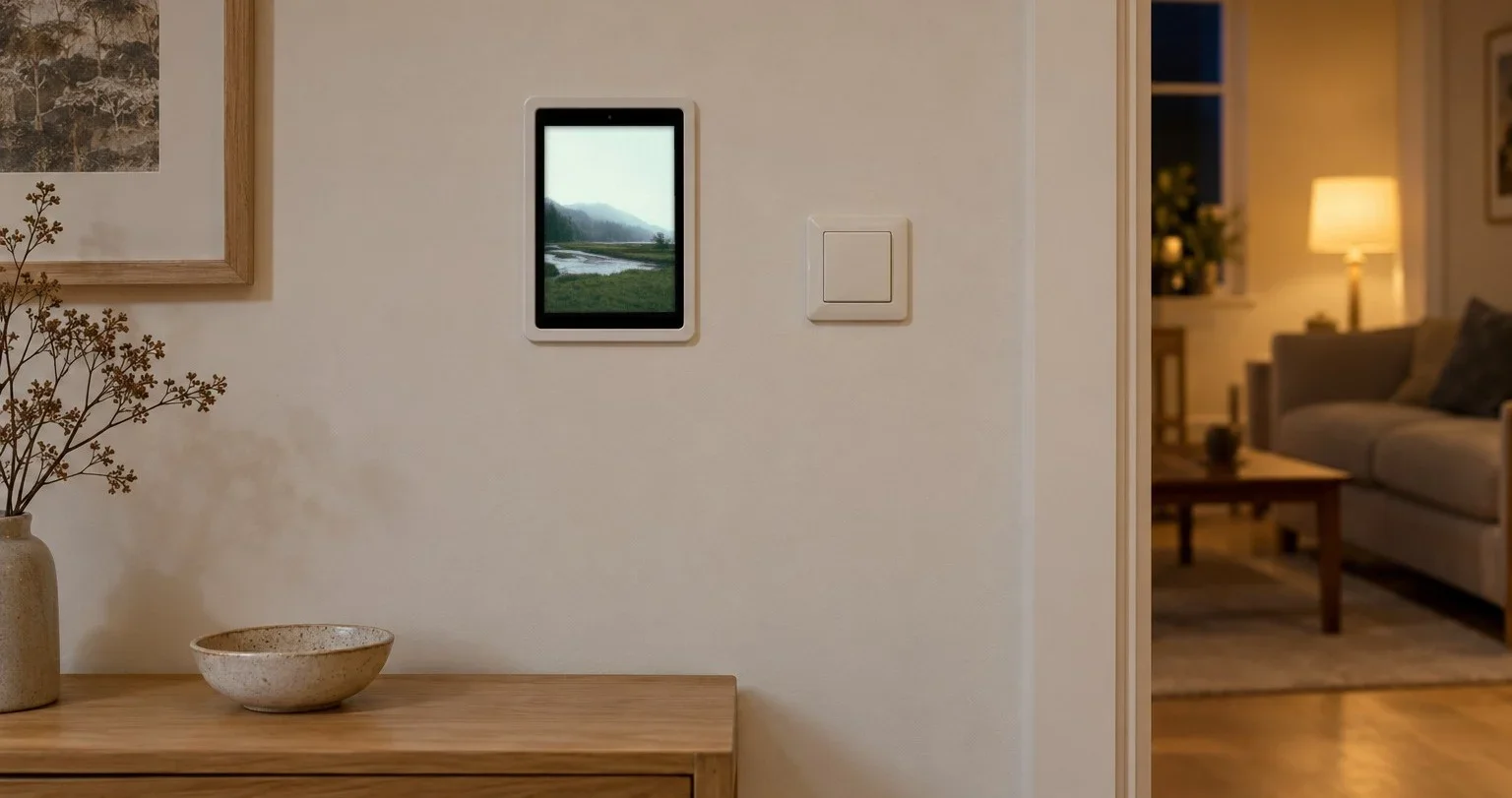
HAkiosk can turn your Home Assistant wall tablet into an Immich photo frame. Point it at an album on your own Immich server, and when nobody has touched the dashboard for a while, the screensaver shows your photos instead of the clock. A touch, or Home Assistant over MQTT, brings the dashboard back.
It works on iPad and iPhone from HAkiosk 1.6 (iOS 15 or later) and on Android tablets from HAkiosk 2.2. On Android the photo screensaver is one of the free features. On iPhone and iPad it is part of the app, with nothing extra to unlock.
What you need
- An Immich server the tablet can reach, usually on the same home network. Plain
httpon your LAN is fine. - An album with the photos you want on the wall. Tip: a small album chosen for the wall usually looks better than your whole library, and HAkiosk keeps at most 120 photos from it anyway.
- An Immich API key. In Immich, open your account settings and go to API Keys → New API Key. It needs only three permissions: album.read, asset.read and asset.view. A full-access key works too, but a tablet on a wall should not hold more than it needs.
Setting it up
- Open HAkiosk's Settings. On iPad, swipe in from the left edge.
- Under Screensaver Settings, turn on Enable Screensaver and set Trigger screensaver after, anything from 30 seconds to an hour. The photos replace the screensaver's clock, so the screensaver itself has to be on. Leave Use blank screensaver off; with it on, the screen goes black instead of showing photos.
- Under Photos, turn on Show photos on the screensaver and choose Immich album.
- Type the Immich address. On iPhone and iPad a bare address such as
192.168.1.20:2283works. On Android, write it in full:http://192.168.1.20:2283. - Paste the Immich API key.
- Press Load albums and pick yours.
- Set Change photo every: from 5 seconds to 5 minutes, 30 seconds by default. On iPhone and iPad there is also Fade between photos, which is off until you turn it on. Android has no fade.
- Press Save.
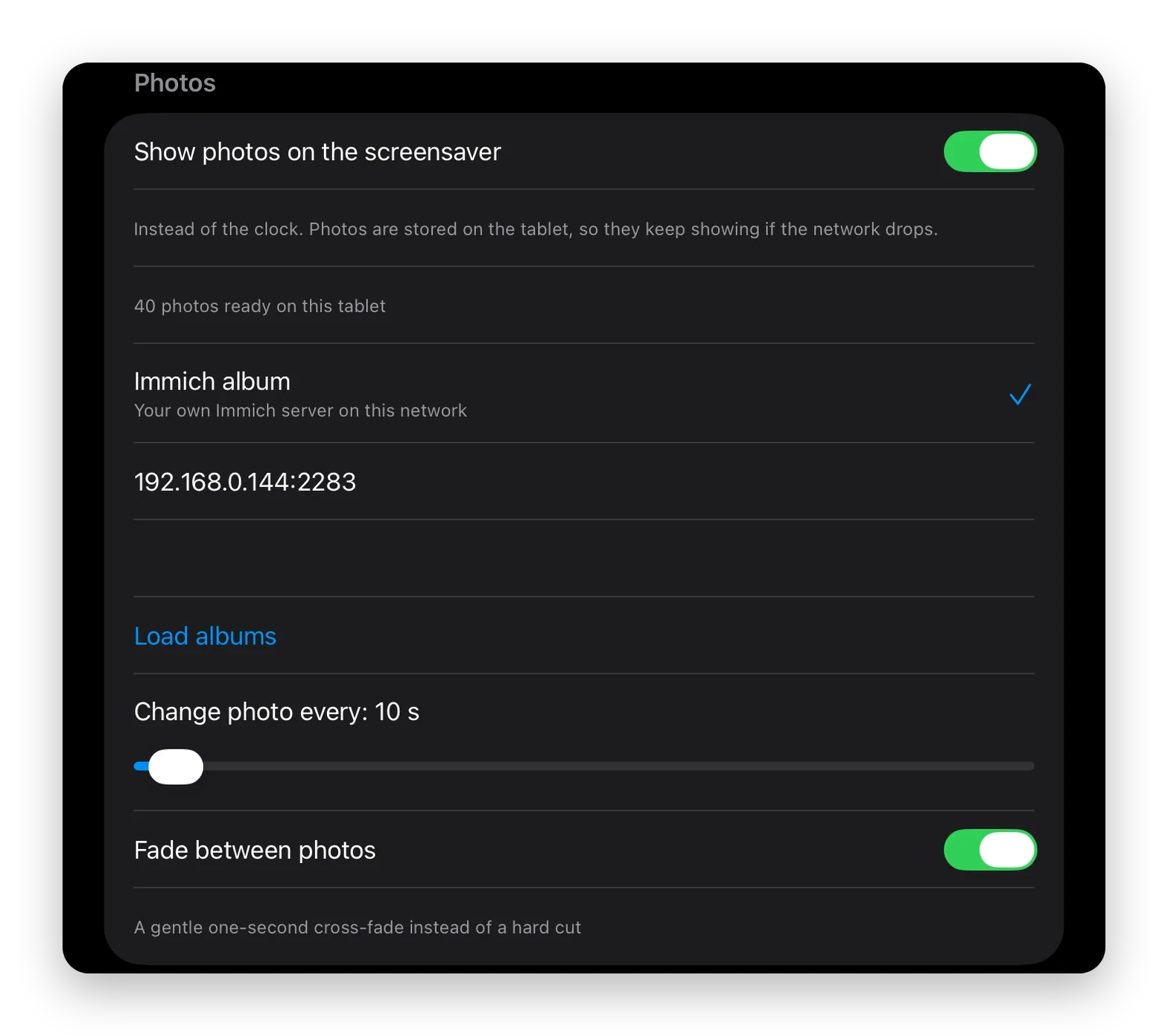
The first time, iOS asks whether HAkiosk may find devices on your local network. Allow it, so the app can reach your Immich server on your LAN. Once the photos are downloaded, the line under the toggle shows how many are stored, for example "40 photos ready on this tablet".
The photos are stored on the tablet
HAkiosk does not stream your album. It downloads up to 120 photos at Immich's preview size (about 24 MB in all), and the screensaver only ever shows what is stored. The screensaver itself never touches the network; photos change only while it is showing.
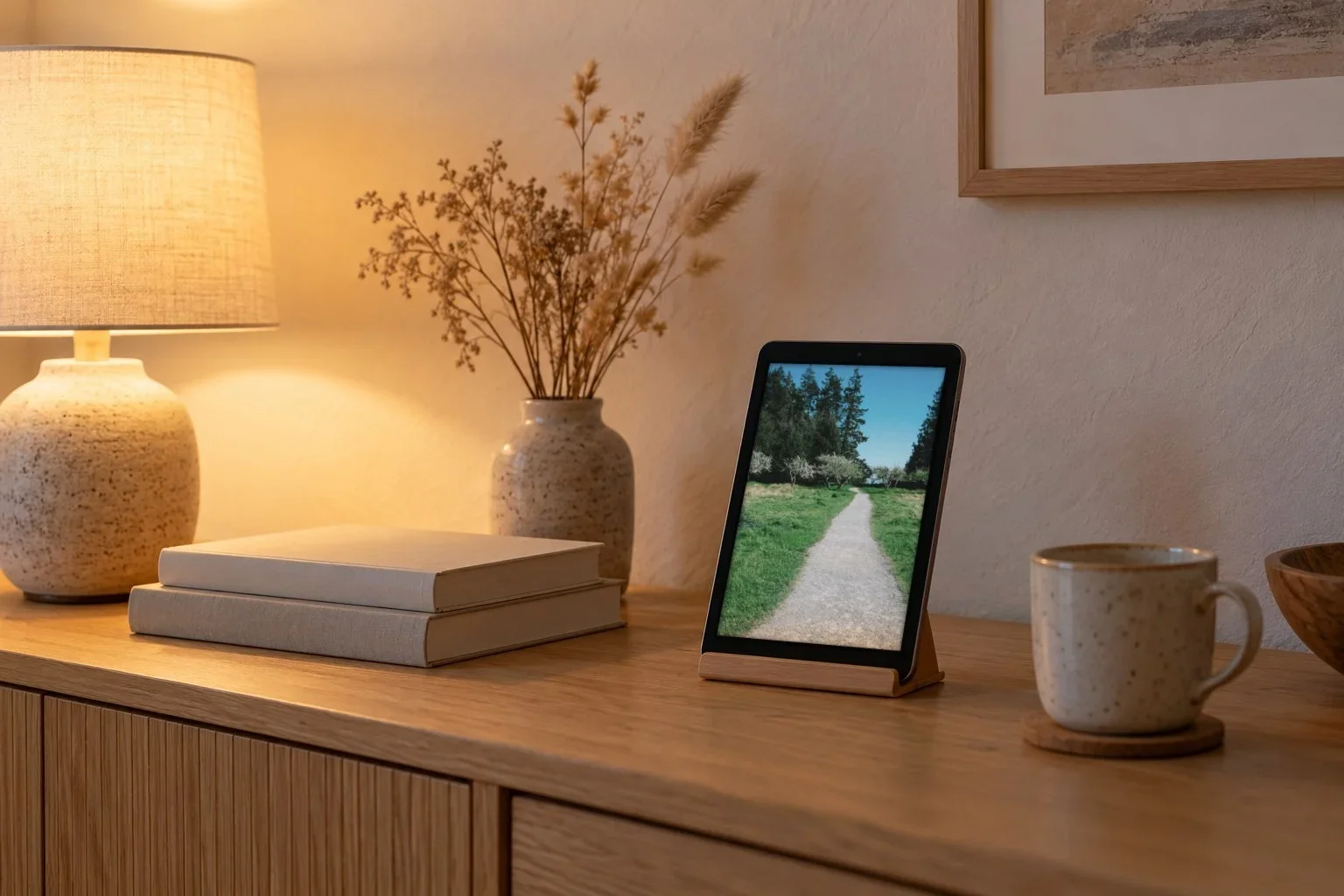
So once the photos are on the tablet, the frame keeps working when the Wi-Fi or the server is down, and it survives a restart of the app. The status line then says "Can't reach the source — still showing 40 saved photos", and the photos keep changing as usual.
HAkiosk checks the album when the app starts, when you press Save, and every six hours. Photos you add to the album or remove from it follow at the next check. After a network outage, press Save to fetch the newest photos straight away.
HAkiosk shows the album's photos; videos stay in Immich. Each photo fills the whole screen, so an album of upright photos suits a tablet that hangs upright.
Waking the screen
A touch brings the dashboard back. So does face detection, if you turn it on; it is off until you do. Home Assistant can wake it as well, over MQTT, once HAkiosk is connected to your broker. Replace the entity and the topic below with your own:
automation:
  - alias: "Hallway panel: wake on motion"
    triggers:
      - trigger: state
        entity_id: binary_sensor.hallway_motion   # your motion sensor
        to: "on"
    actions:
      - action: mqtt.publish
        data:
          topic: "hakiosk/hallway/cmd"            # your base topic + /cmd
          payload: '{"action":"wake"}'
HAkiosk stays connected to the broker while it is on screen, which on a wall panel is all day.
At night
The photo screensaver keeps the screen lit. If that is too bright for a bedroom or a dark hallway at night, you have two options:
- Let Home Assistant switch to the blank screensaver at night. The same MQTT topic accepts settings, so one automation can send
{"action":"set","screensaverBlank":true}at bedtime and{"action":"set","screensaverBlank":false}in the morning. The blank screensaver shows black and turns the brightness right down. - On iPad, turn on Allow device standby. The iPad then sleeps on its own Auto-Lock timer and wakes at a touch.
If the photos do not appear
Things to check, by what the status line says:
- "Couldn't reach Immich: …" after Load albums: the address, and that the tablet is on a network where it can reach the server. On iOS, also check that local network access is allowed for HAkiosk in the iOS Settings app.
- "No pictures found there yet": the album may be empty, or hold only videos.
- "Finish setting up the source below": the address, the key or the album is still missing.
- "Couldn't load photos: …" with nothing stored yet: the reason after the colon names the problem, for example an HTTP error from the server.
- "Can't reach the source" while your server is up: check the API key and its three permissions.
- The clock shows instead of photos: no photos have been stored yet. Fix the source, then press Save.
Your photos stay yours
The photos travel between your Immich server and the tablet, and HAkiosk sends the API key only to that server. On iPhone and iPad the key is kept in the Keychain; on Android it is stored on the device.
For the rest of the panel setup, see how to wake a Home Assistant wall tablet when you walk up and what HAkiosk 1.6 brought to iPad and iPhone.