Wake your Home Assistant wall tablet over MQTT
Connect a HAkiosk wall tablet to Home Assistant over MQTT, and Home Assistant can wake the screen when someone walks in or the doorbell rings, show the screensaver when the hall is quiet, change the page, and read the tablet's battery and presence. This guide sets it up from scratch.
It works the same on iPad and iPhone (HAkiosk 1.6, iOS 15 or later) and on Android tablets (HAkiosk 2.2). On Android, MQTT is one of the free features; on iPhone and iPad it comes with the app.
Before you start
You need an MQTT broker and Home Assistant's MQTT integration. If you do not have a broker yet, install the Mosquitto broker add-on in Home Assistant and set up the MQTT integration it offers. That is all HAkiosk needs.
1. Give the tablet its own login
Mosquitto checks logins against your Home Assistant users, so the tidiest login for the tablet is a Home Assistant user of its own. Go to Settings → People → Users → Add user (the Users tab appears once Advanced mode is on in your user profile), call it tablet, and give it a password.
2. Connect HAkiosk
Open HAkiosk's Settings (on iPad, swipe in from the left edge) and find MQTT (local control):
- Turn on Enable MQTT.
- Broker address: the machine running the broker. With the Mosquitto add-on that is your Home Assistant host, for example
192.168.1.20orhomeassistant.local. - Broker port:
1883. - Username (optional) and Password (optional): the user from step 1.
- Base topic: a name for this tablet, for example
hakiosk/hallway. Every topic below starts with it. - Press Save.
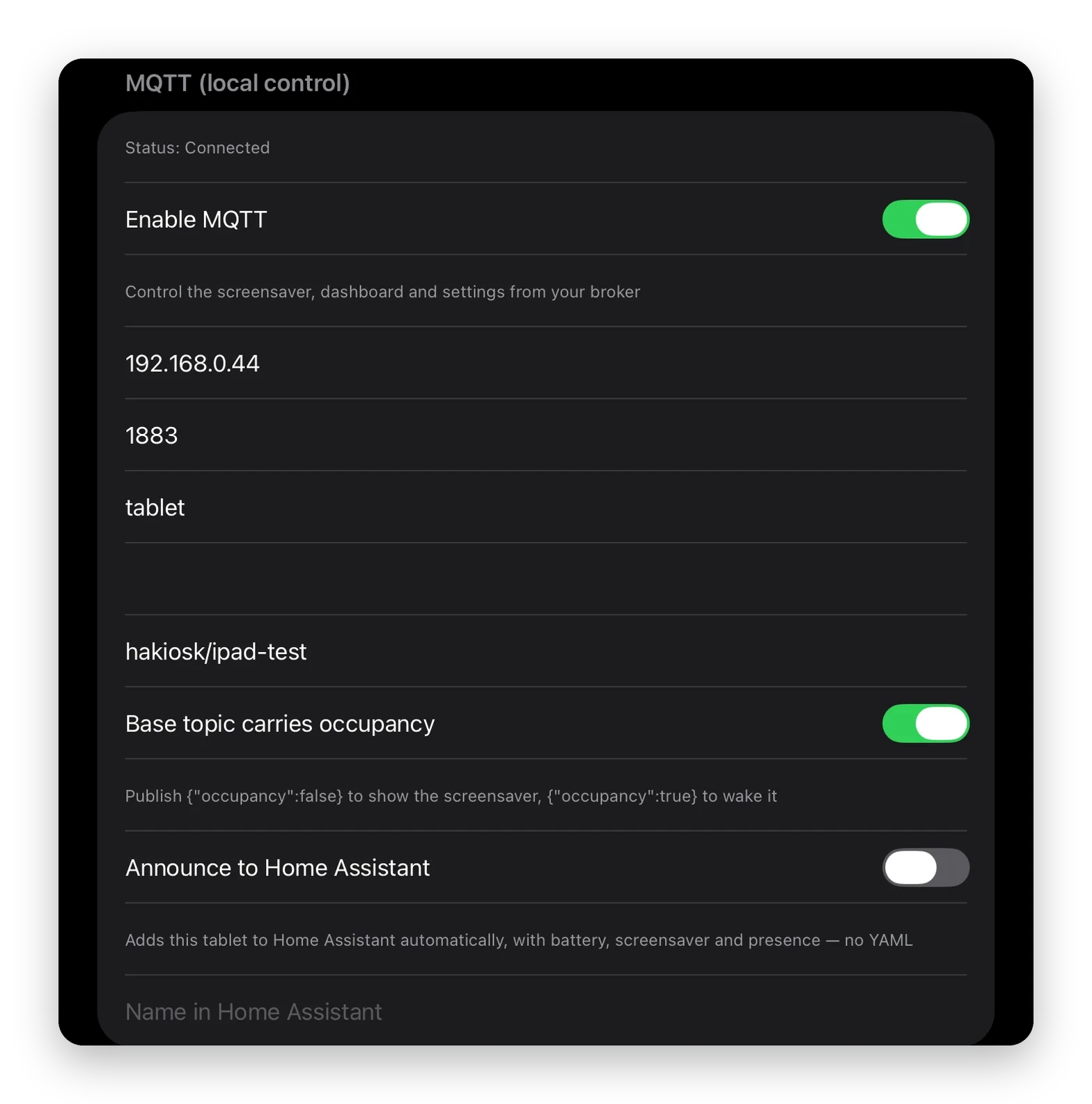
A moment later the status line reads Connected. If it stays on Connecting…, check the address, the port, the username and the password.
HAkiosk is connected to the broker while it is the app on screen, which on a wall panel is all day. On an iPad that Home Assistant should be able to wake, leave Allow device standby off.
3. Let the tablet add itself to Home Assistant
In the same section, type a Name in Home Assistant, for example Hallway panel. Then turn on Announce to Home Assistant and press Save. Home Assistant names the entities after the device the first time it sees them, so set the name first.
A new device appears under Settings → Devices & services → MQTT, with five entities and no YAML:
- Battery: the tablet's charge in percent.
- Charging: on while the tablet is charging.
- Presence: from the front camera, when face detection is on in HAkiosk.
- Screensaver: a switch. On shows the screensaver, off brings the dashboard back.
- Refresh: a button that reloads the page.
Try the Screensaver switch from the device page once. If the tablet reacts, everything is in place.
4. Automations
These go in configuration.yaml under automation:. You can also paste the part from alias: down into a new automation, using the automation editor's YAML mode. Replace the entity ids and the topic with your own.
Wake on motion, screensaver when the hall is quiet:
automation:
  - alias: "Hallway panel: wake on motion"
    triggers:
      - trigger: state
        entity_id: binary_sensor.hallway_motion   # your motion sensor
        to: "on"
    actions:
      - action: mqtt.publish
        data:
          topic: "hakiosk/hallway/cmd"            # your base topic + /cmd
          payload: '{"action":"wake"}'

  - alias: "Hallway panel: screensaver after five quiet minutes"
    triggers:
      - trigger: state
        entity_id: binary_sensor.hallway_motion
        to: "off"
        for: "00:05:00"
    actions:
      - action: mqtt.publish
        data:
          topic: "hakiosk/hallway/cmd"
          payload: '{"action":"screensaver"}'
Wake when the doorbell rings, for a panel that shows the door camera. Doorbell integrations report a ring as an event entity, and every ring changes its state:
automation:
  - alias: "Hallway panel: wake on doorbell"
    triggers:
      - trigger: state
        entity_id: event.front_door_doorbell      # your doorbell's ring entity
        not_from: ["unavailable", "unknown"]
        not_to: ["unavailable", "unknown"]
    actions:
      - action: mqtt.publish
        data:
          topic: "hakiosk/hallway/cmd"
          payload: '{"action":"wake"}'
If a motion or presence sensor already publishes occupancy over MQTT, point it straight at the base topic. With Base topic carries occupancy on (the default), {"occupancy":true} wakes the screen and {"occupancy":false} shows the screensaver. With it off, {"state":"OFF"} shows the screensaver and any other state wakes the screen.
Everything it understands
Publish to <base topic>/cmd:
| Payload | What happens |
|---|---|
{"action":"wake"} |
the dashboard comes back |
{"action":"screensaver"} |
the screensaver shows |
{"action":"refresh"} |
the page reloads |
{"action":"url","url":"https://…"} |
another page opens |
{"action":"set", …} |
settings change in one message |
set takes url, zoom (0–200), darkMode, kioskMode, screensaverEnabled, screensaverTimeout (30–3600 seconds) and screensaverBlank. For example, one automation at bedtime can send {"action":"set","darkMode":true,"screensaverBlank":true}. The dashboard goes dark, and from then on the screensaver is a black screen instead of the clock or your photos.
HAkiosk publishes back on two retained topics:
<base topic>/state: the current settings, plusbattery,charging,screensaverActiveand, while the camera is running,present.<base topic>/availability:onlineoroffline. If the tablet drops off the network, the broker marks it offline for it, so Home Assistant always knows whether the panel is there.
For what the panel can show while it waits, see the Immich photo frame guide. To wake it with the tablet's own camera, see waking a wall tablet when you walk up.