HAkiosk 1.6 for iPad and iPhone: Home Assistant control over MQTT, and your own photos on the screensaver
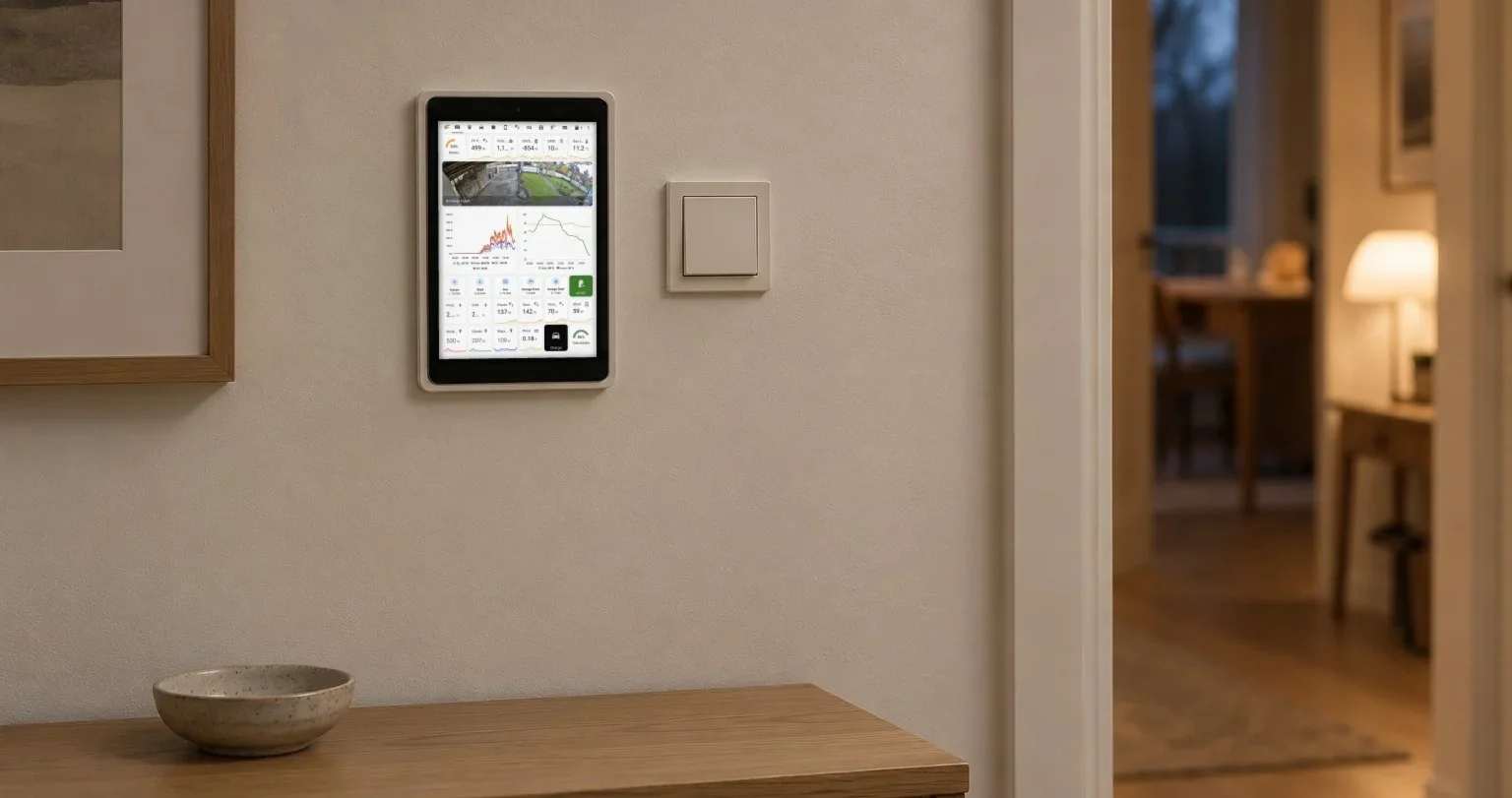
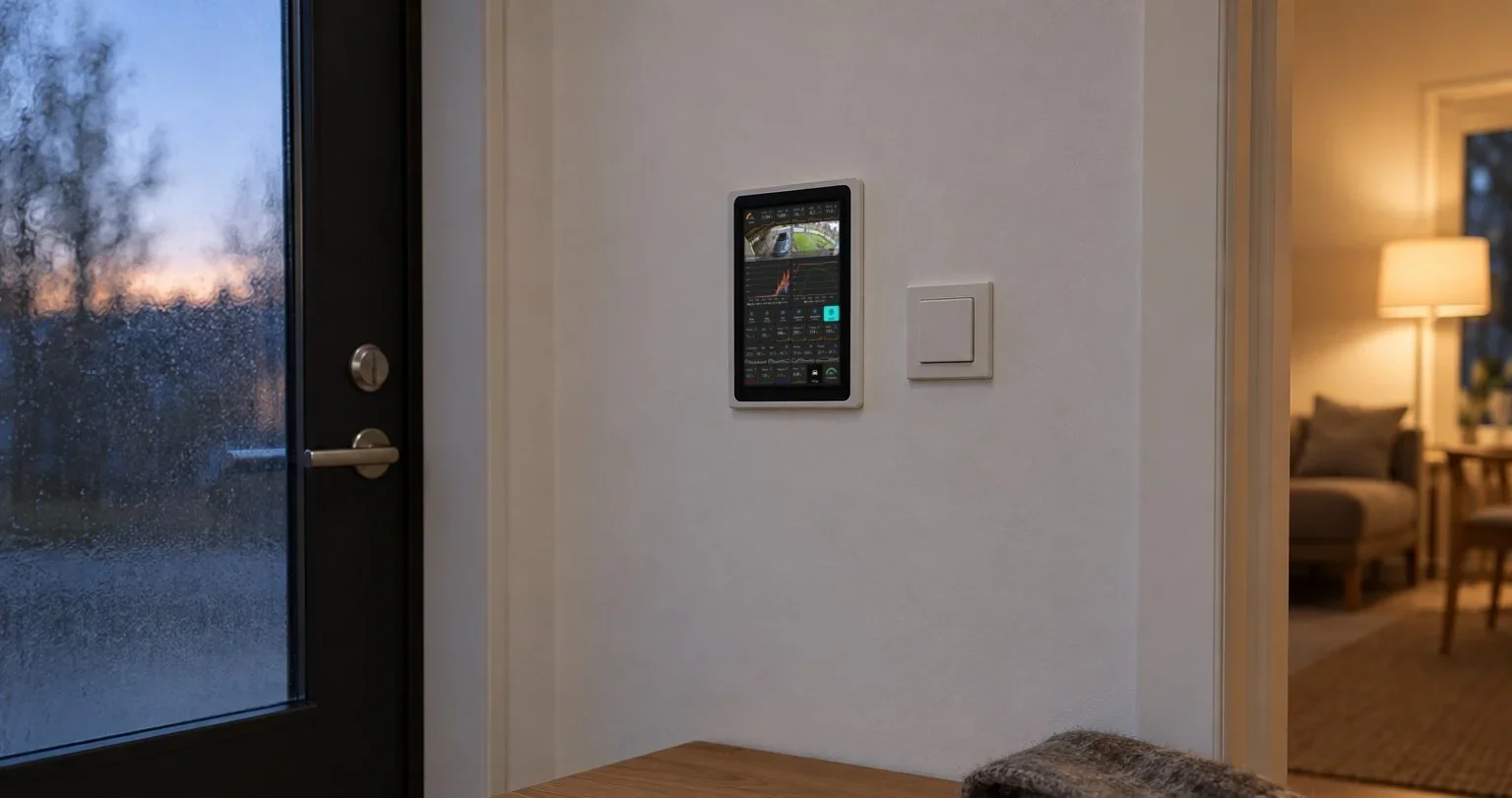
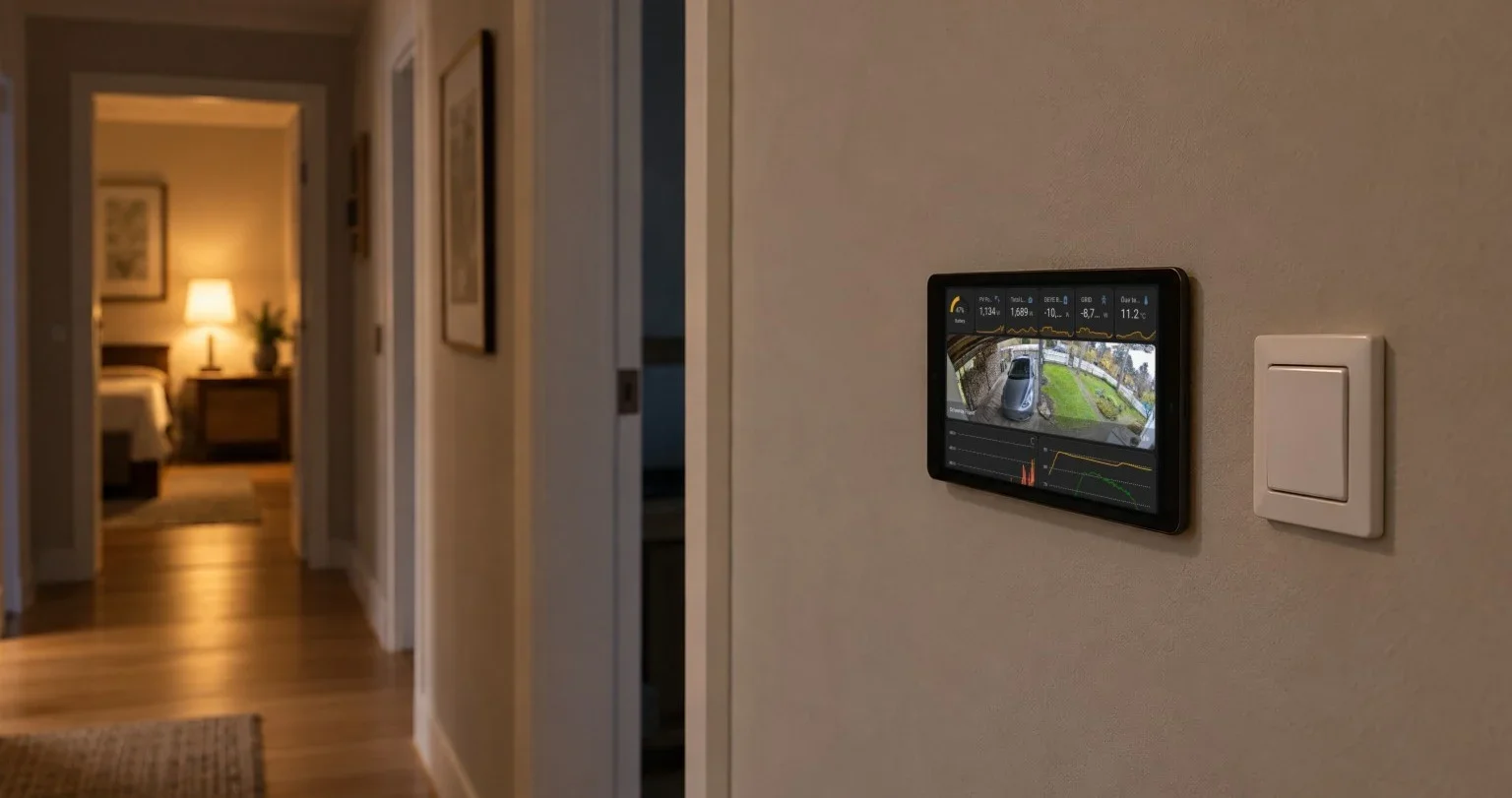
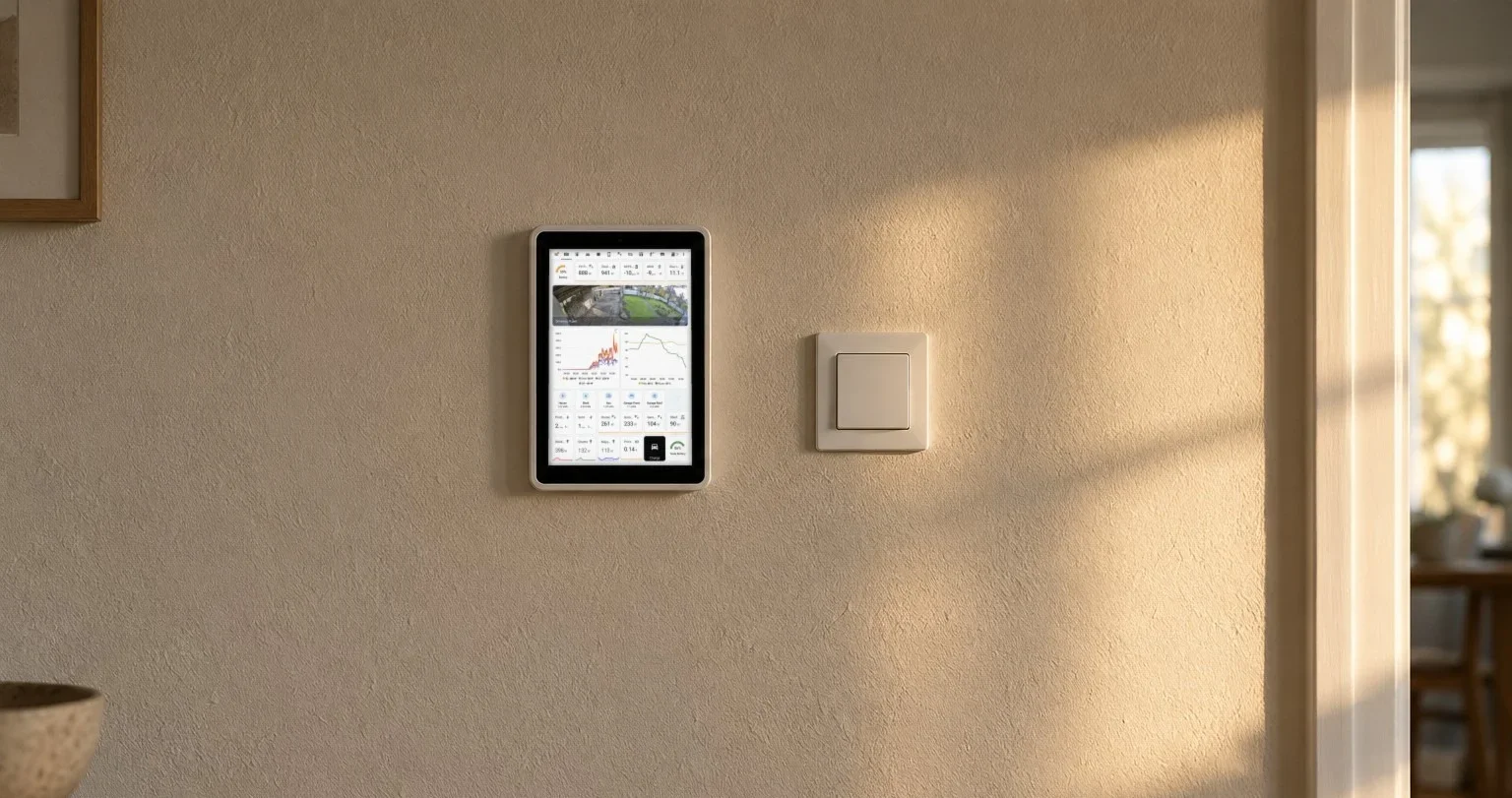
HAkiosk 1.6 for iPad and iPhone is on the App Store. It brings the two things iPad owners have asked for most: Home Assistant can now control the panel over MQTT, and the screensaver can show your own photos. It needs iOS 15 or newer.
Until now we told people the honest version: if you wanted Home Assistant to control the screen, you needed the Android app. That is no longer true. Most of this release brings the iPad level with what Android got in 2.2, and it uses the same topics and the same commands. An automation you wrote for an Android panel works on an iPad without changes.
Home Assistant can talk to the iPad now
Settings → MQTT → Enable MQTT. Enter your broker's address, a username and password if your broker uses them (the Mosquitto add-on does, and your normal Home Assistant login works there), and a base topic such as hakiosk/hallway. Save, and the status line says Connected.
From then on an automation can publish to <topic>/cmd:
{"action":"screensaver"}shows the screensaver,{"action":"wake"}brings the dashboard back{"action":"refresh"}reloads the page{"action":"url","url":"…"}opens a different page{"action":"set", …}changes zoom, dark mode, kiosk mode or the screensaver settings in one message
The base topic itself still works the old Android way. Point a motion or occupancy sensor at it, and {"occupancy":false} shows the screensaver while {"occupancy":true} wakes the screen.
The iPad reports back on <topic>/state, a retained message with its settings, its battery level, whether it is charging, whether the screensaver is showing, and whether someone is in front of it. Nothing is guessed. The battery level and charging state are left out when iOS cannot say, and presence is reported only while the camera is actually running.
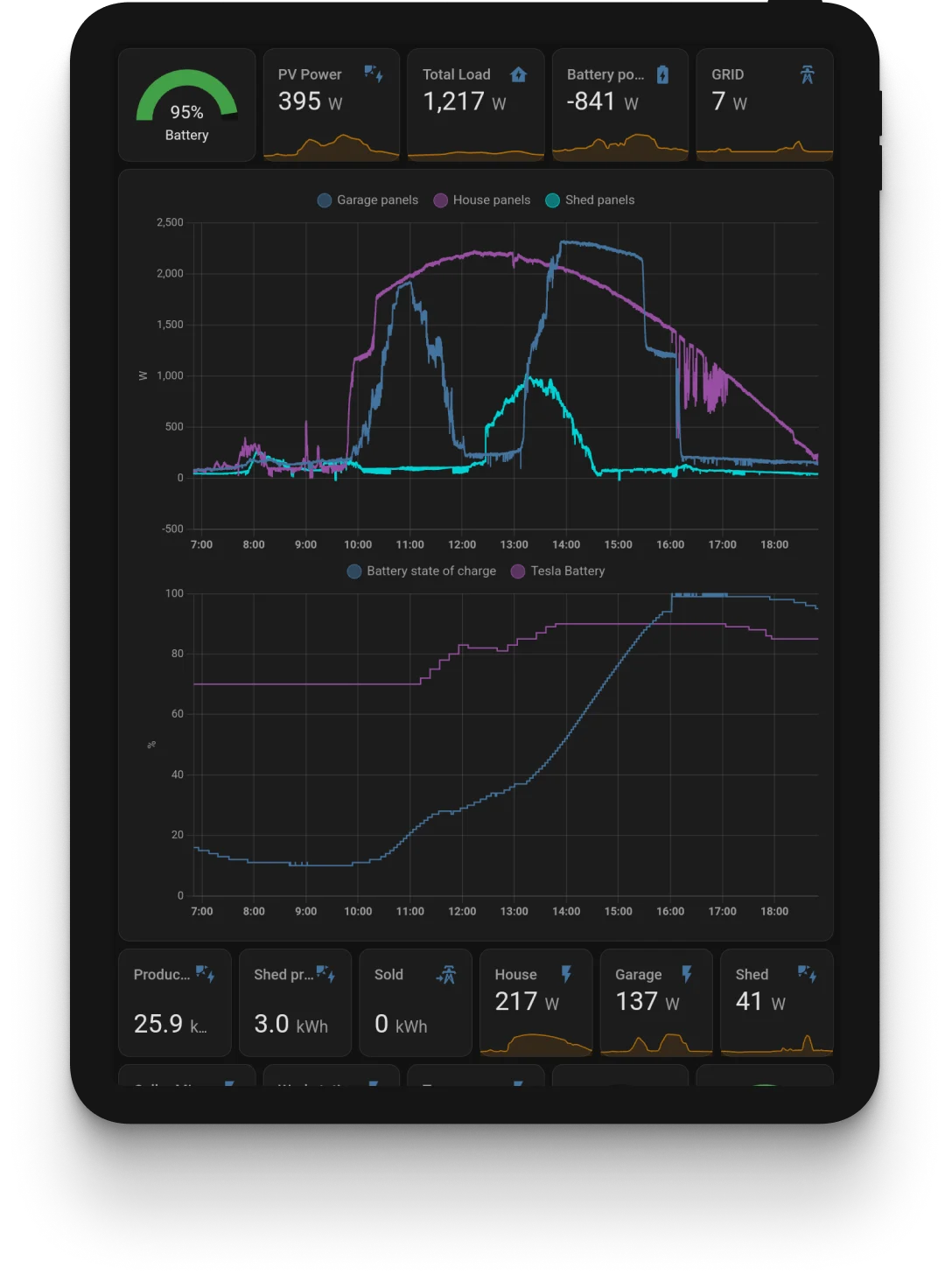
The iPad adds itself to Home Assistant
Turn on Announce to Home Assistant in the same section. Home Assistant then creates one device with five entities, and you edit no configuration file:
- Battery: a percentage sensor
- Charging: on while the iPad is on power
- Presence: driven by face detection on the device, and unavailable while the camera is off. It never claims the room is empty because nothing is looking
- Screensaver: a switch that shows or hides the screensaver, and also tells you which it is doing
- Refresh: a button that reloads the page
Two tips from our own testing.
Name the device first. Fill in Name in Home Assistant before the Save that turns Announce on. Home Assistant builds the entity ids from that name the first time it sees them, and keeps them. If you leave it empty, the device is called "HAkiosk tablet".
Turning Announce off removes the device. The app sends Home Assistant an empty announcement for each entity, so you are not left with five ghost entities on your broker.
It is connected while it is on screen
This is the part that differs from Android, and it is iOS that decides it. An iPhone or iPad app cannot hold a network connection open in the background, so HAkiosk connects while it is the app on screen. When it leaves the screen, it tells the broker it is going offline first. If it disappears without saying goodbye, because of a crash or a dropped network, the broker announces it offline on its behalf, and Home Assistant shows it as unavailable instead of showing stale values.
For a wall panel that is what you want: it is on screen all day, and Home Assistant always knows whether it is there.
A photo screensaver from your own Immich server
Settings → Photos → Show photos on the screensaver. Choose Immich album, type your server's address (a bare 192.168.1.20:2283 is fine) and an API key, press Load albums and pick one. The screensaver shows those photos instead of the clock. Change photo every sets the pace, from 5 seconds to 5 minutes. Fade between photos cross-fades them, and it is off unless you turn it on.
The photos are downloaded to the iPad, not streamed. It keeps up to 120 of them, and the screensaver never touches the network. If the Wi-Fi drops or the server is off, it keeps showing the photos it has and Settings says so ("Can't reach the source — still showing 40 saved photos"). It does not go blank or spin. It checks the album for changes when it starts, when you press Save, and every six hours. Photos added to or removed from the album follow on the next check.
Two things it does not do. There is no folder source on iOS; that is Android-only for now. There is no Google Photos either, for the same reason as on Android: Google no longer lets apps like this read your albums.
Letting the iPad sleep
HAkiosk keeps the screen on, because that is what a wall panel is for. Allow device standby (Settings → Device Standby) is for an iPad that should not be on all night. With it on, the app stops holding the screen awake and the iPad locks on its own Auto-Lock timer, set in iOS Settings → Display & Brightness.
The trade-off, plainly: a locked iPad is a sleeping app. It tells Home Assistant it is going offline, and an automation cannot wake it until someone touches it. Also, a page that plays live video, such as a camera card, keeps the iPad awake whatever this setting says, the same as Safari does.
Fixes
- The Assist microphone no longer closes the app. Tapping the microphone in Home Assistant's voice assistant used to crash HAkiosk. It now asks for microphone permission the way iOS requires, and the app stays open.
- Face detection is off until you turn it on. On a fresh install the camera stays off until you choose otherwise. That was always the intent, and it is now true everywhere in the app.
- The screensaver waits the minute Settings says it will. A fresh install used to start it after 30 seconds while Settings showed 60.
Updating
The App Store updates it for you, or open the HAkiosk page on the App Store and press Update. Your settings carry over, and everything new here stays off until you turn it on.
One thing to check: 1.6 needs iOS 15 or newer. An iPad stuck on iOS 14 keeps version 1.5, which goes on working as it does today.
If you want the panel to wake as you walk up, by camera or by a motion sensor in Home Assistant, this is how the pieces fit together.