Best iPad Kiosk App for Exhibitions and Trade Shows - 2026 Guide
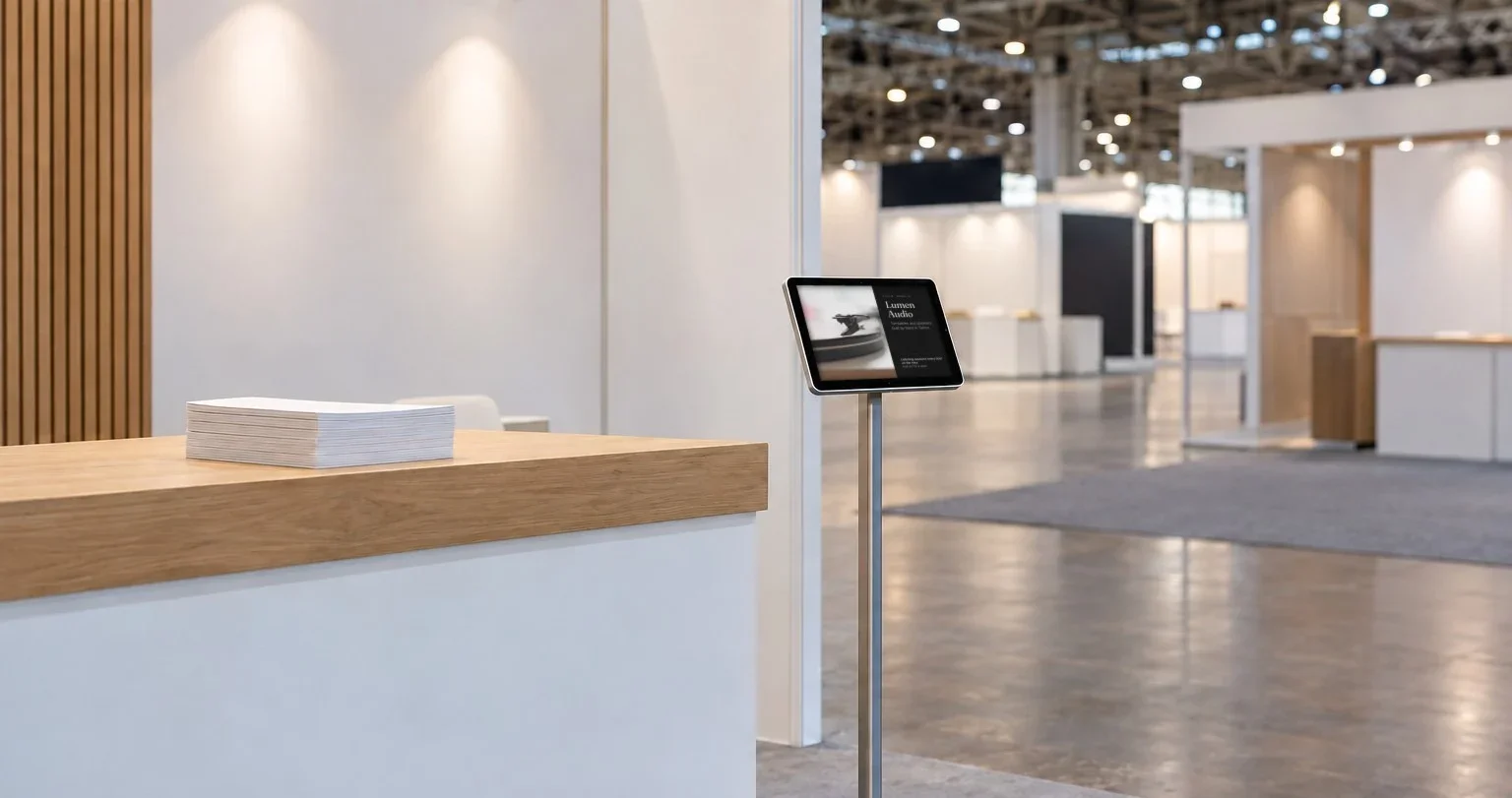
You've got 48 hours until the trade show floor opens, a booth to assemble, and somewhere on your to-do list: "figure out the iPad display." I've been there. The wrong app choice means a panicked morning, a locked-out device, or worse — an attendee wandering through your settings while you're talking to a lead. Here's everything you need to pick the right iPad kiosk app for your exhibition and get it running fast.
I build one of the apps in this comparison, so read the HAkiosk section with that in mind. I've tried to be specific about what it does not do, because a booth display that fails at 10 a.m. on day one is a worse outcome for both of us than a sale I talked you into.
What to Look for in an iPad Kiosk App for Exhibitions
Trade show environments are unforgiving. You need software that survives real-world conditions, not a demo environment. Four things matter most.
Single-app lock mode is non-negotiable. Attendees are curious. They tap, swipe, and explore. Without a hard lock that keeps them inside your display, you will spend the day restarting your presentation instead of having conversations. On iPad, every kiosk app ultimately leans on the same iOS mechanism for this — Guided Access — because Apple does not let a third-party app take over the home gesture by itself. What separates the apps is how much of that setup they do for you and whether they can re-arm the lock after a reboot.
Full-screen display is equally critical. Browser chrome, status bars, and notification banners break immersion and look unprofessional. Your iPad should look like a purpose-built display, not a consumer device running a web page.
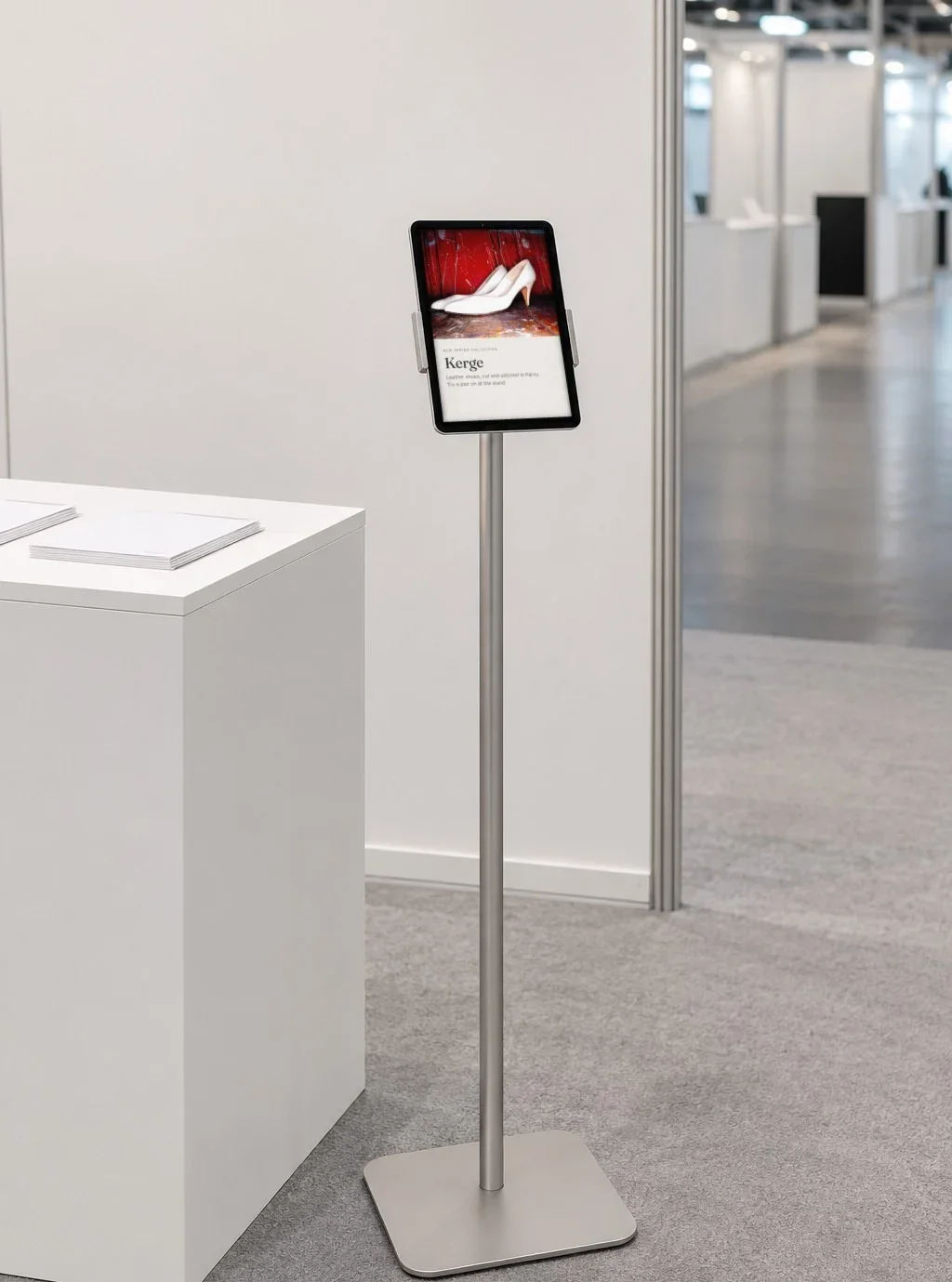
Connectivity planning separates good kiosk setups from bad ones. Trade show Wi-Fi is famously awful — congested, unreliable, and sometimes nonexistent in basement convention centers. Be honest with yourself about this one: no iPad kiosk app carries a meaningful offline copy of an arbitrary website. If your display is a web page, it needs a route to wherever that page lives. The planning happens on the network side, not in the app. There's a section on exactly how to do that below, and it's the part of this guide I'd read twice.
Setup speed matters. You are building a booth, managing logistics, and coordinating with your team. The right tablet kiosk mode for exhibition use should take minutes, not an afternoon. If it requires MDM enrollment, developer certificates, or configuration profiles, it is not the right tool for a small or mid-sized team.
Top iPad Kiosk Apps for Exhibitions Compared
Four options come up consistently when teams look for an iPad kiosk app for exhibition deployments. The HAkiosk column is verified against the shipping app. The other three columns are a starting point for your own research, not a spec sheet — pricing and feature sets change, and you should confirm anything decision-critical with the vendor before you buy.
| Criteria | HAkiosk | Kiosk Pro | iOS Guided Access | SureLock |
|---|---|---|---|---|
| Ease of setup | Minutes, no IT | Feature-rich, more to configure | Built into iOS, limited | Designed around MDM |
| Price model | One-time purchase, no subscription | Paid tiers | Free, built in | Enterprise licensing |
| Works with no internet | No — the page is fetched live | Has offline/local content options | Depends on the app being locked | Varies by configuration |
| Remote URL change | Yes, from hakiosk.com/control | Varies by tier | No | Yes, via console |
| Display customization | Zoom, dark mode, screensaver | Extensive | Minimal | Extensive |
| Platform support | iPadOS/iOS and Android | iOS | iOS | Mainly Android and Windows |
| MDM required | No | No | No | Recommended |
| Best for | Small teams that need it working tonight | Deep iOS feature needs | One device, zero budget | Large managed fleets |
The honest summary: HAkiosk wins on time-to-working. Install, type a URL, set a PIN, lock. That's the whole workflow, and there's no configuration profile, developer account, or subscription tier to sort out the night before your event.
Kiosk Pro is the right answer if you need depth on iOS specifically — things like local content, printing, or form data routing — and you have an hour to configure it properly.
iOS Guided Access deserves a mention because it's free and already on your iPad. For a single device showing a single page for a single day, it genuinely works. The limits show up fast: you cannot change the displayed URL without unlocking the device and going into Safari, there's no multi-device management, and Safari's chrome stays on screen unless you add the page to your home screen first.
SureLock is built for managed Android and Windows fleets. If your organization already runs tablets across locations with IT behind it, evaluate it. For a booth being assembled the day before opening, it's the wrong shape of tool.
Why HAkiosk Works for Exhibition and Trade Show Booths
The reason HAkiosk works well as a kiosk app for trade show booth setups comes down to what it doesn't require. No MDM enrollment. No Apple Developer account. No configuration profiles pushed from a management console. You install it, type in a URL, and lock it.
The URL-based approach is genuinely flexible. Your display is whatever lives at the URL you point it at: an interactive product catalog, an embedded lead capture form, a portfolio site, a live demo dashboard, or a branded landing page built for the event. Nothing about your content has to know it's running in a kiosk.
You can change the display without touching the iPad. Sign in at hakiosk.com/control on your phone or laptop, pair the iPad once with a code or a QR scan, and from then on you can push a new URL, change the zoom, toggle dark mode, trigger a refresh, or pull a live screenshot of what the booth display is showing right now. That last one is the feature I'd sell to an exhibitor: you can stand across the hall talking to someone and check that the booth screen still shows what it's supposed to. Pairing takes about a minute, and it's worth doing before you travel — you cannot pair a device you can't reach.
Cross-platform support helps mixed-hardware teams. Most booths run whatever hardware was available. HAkiosk runs on iPad/iPhone and on Android, and both appear in the same Fleet Control workspace. They're not feature-identical — the Android build adds screen pinning, home-launcher mode, auto-start after a reboot, and MQTT control, which iOS doesn't have — but the core job and the workflow are the same on both.
The lock is a real lock, and it re-arms itself. More on how to set it up below.
Read This Before You Commit: Three Limits
I'd rather you find these here than at your booth.
1. There is no offline mode and no local file support. HAkiosk fetches your URL live, every time. There's no cached copy, no bundled content, and no fallback page. If the network drops mid-show, the display shows a "Failed to load webpage" screen — and it does not retry on its own. You (or Fleet Control) have to trigger a reload. Plan the network, not the app; the next section is how.
2. There is no timed auto-refresh. The page reloads when you swipe in and refresh, when the URL changes, or when you trigger a refresh remotely. If your content updates on its own — a live lead counter, a queue display — the page needs to refresh itself in its own JavaScript, or it will sit there showing the morning's numbers. A one-line meta refresh tag in your page handles it.
3. On iPhone and iPad there are currently thin black bars down the left and right edges. The app applies a 10-point margin on both sides unconditionally. It's a bug, it's on the list, and if your design has a full-bleed background you'll notice it. Everything else renders full-screen: no status bar, no browser chrome, no address bar.
Planning Your Booth Network (The Part That Actually Fails)
Venue Wi-Fi is shared between hundreds of exhibitors and thousands of attendees. Treat it as a bonus, not a plan. In rough order of reliability:
Best: put the content on the booth's own network. Run the page from a laptop or a Raspberry Pi on a small travel router in your booth, and point HAkiosk at the local address. No internet involved at all, so nothing that happens to venue Wi-Fi can touch your display. This is the closest thing to a genuine offline setup that exists, and it works because HAkiosk will load any URL, local ones included.
Good: a dedicated phone hotspot with your page on the public internet. Cellular in a convention center is congested but usually survivable, and it fails independently of the venue. Bring a power bank for the phone; a hotspot at full tilt drains a phone in a few hours.
Acceptable: venue Wi-Fi with a hotspot standing by, and know how to switch. Practice the switch once at home so you're not doing it for the first time with a prospect watching.
Whatever you choose, rehearse the failure. Load your display, then turn the network off and watch what happens. Then turn it back on and see how you recover — that's swipe in from the left edge and refresh, or one tap in Fleet Control from your phone. Twenty seconds of practice the night before turns a booth emergency into a shrug.
How to Set Up HAkiosk on an iPad for a Trade Show in Under 5 Minutes
Do this the night before, not the morning of.
Step 1 — Install and point it at your page. Search the App Store for HAkiosk — one word, no space; that's the exact app name and searching "HA Kiosk" may not find it. Open the app, swipe in from the left edge to open settings, and enter the URL of your display content. Any reachable web page works: your product page, an Airtable or Tally form, a Google Site, a Notion page, a hosted HTML file, or a local address on your booth network. Save, and confirm it renders correctly.
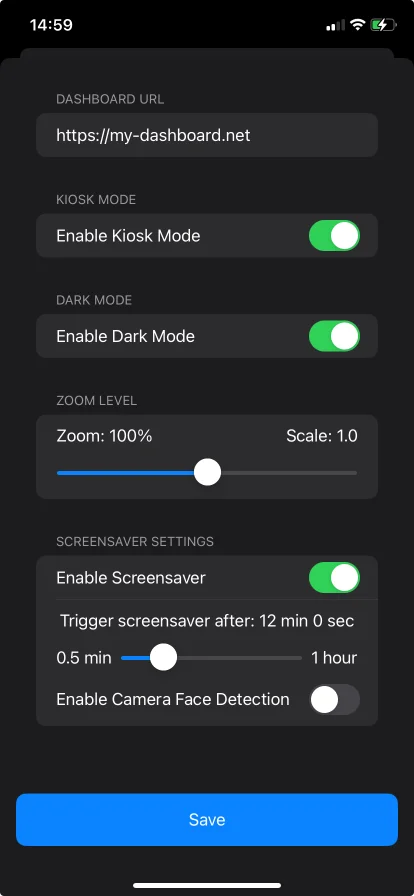
Step 2 — Set the display options you want. Zoom is a slider up to 200%, applied live without a reload — useful for making a page designed for a laptop readable from two meters away. Dark mode darkens the interface. And for a booth, leave the screensaver off: it's designed for wall panels in a quiet house, not for a display that should be showing your product all day. Note that the app already keeps the screen awake on its own, so you don't need to change anything in iOS Settings for that.
Step 3 — Know which "kiosk" you're turning on. There's a toggle in settings called "Enable Kiosk Mode", and it is not the device lock. It appends ?kiosk=true to your URL, which is a signal for the kiosk-mode add-on used by Home Assistant dashboards to hide their own sidebar and header. If your display is a Home Assistant dashboard with that add-on installed, turn it on. If your display is a normal web page, leave it off — it will do nothing useful and adds a stray query parameter to your URL. The device lock is Step 4.
Step 4 — Set up the actual lock, in the right order. This is the step people get wrong, so it's worth doing carefully:
- First, in iOS Settings → Accessibility → Guided Access, turn Guided Access on and set a passcode. Do this before anything else — the app's lock leans on Guided Access, and without a passcode set here it will silently fail to engage.
- Then in HAkiosk's settings, under Security, set a PIN.
- Then switch on "Lock this device".
Now the swipe that opens settings asks for your PIN, and iOS blocks the home gesture, notifications, and app switching. If the lock can't engage, the app tells you and offers a "Set Guided Access passcode" shortcut — if you see that, go back to step 1. The lock also re-arms itself if iOS drops the session while the device is idle, which is what you want for a three-day show.
Step 5 — Charge, mount, and test like an attendee. Plug it in; a mounted iPad on a powered stand is the most reliable configuration there is. Set brightness high — convention center lighting is harsh and overhead. Then hand the iPad to a colleague and ask them to try to break out of it. Better now than on the floor.
Exhibition Use Cases: What You Can Display on Your Kiosk
The flexibility of a URL-based iPad locked kiosk mode means the display is only as limited as your content.
Interactive product catalogs and spec sheets work well as simple web pages or hosted PDFs. Attendees browse at their own pace while your team focuses on qualified conversations.
Lead capture forms embedded directly in the kiosk display are one of the highest-ROI configurations for trade show use. Build a Typeform, Tally, or plain HTML form, point HAkiosk at it, and every interaction becomes a captured lead. Pair it with a simple offer — a resource download, a demo booking — and the kiosk does active work for your booth. One practical note: after a submission, most form tools show a thank-you page and stay there. Set your form's redirect to go back to the blank form so the next attendee doesn't walk up to someone else's confirmation screen.
Live demo dashboards and clickable prototypes give technical products something tangible. If you're showing software, letting someone touch it beats describing it.
Schedule and session boards for booths running talks: a page listing what's happening when, updated from your phone between sessions.
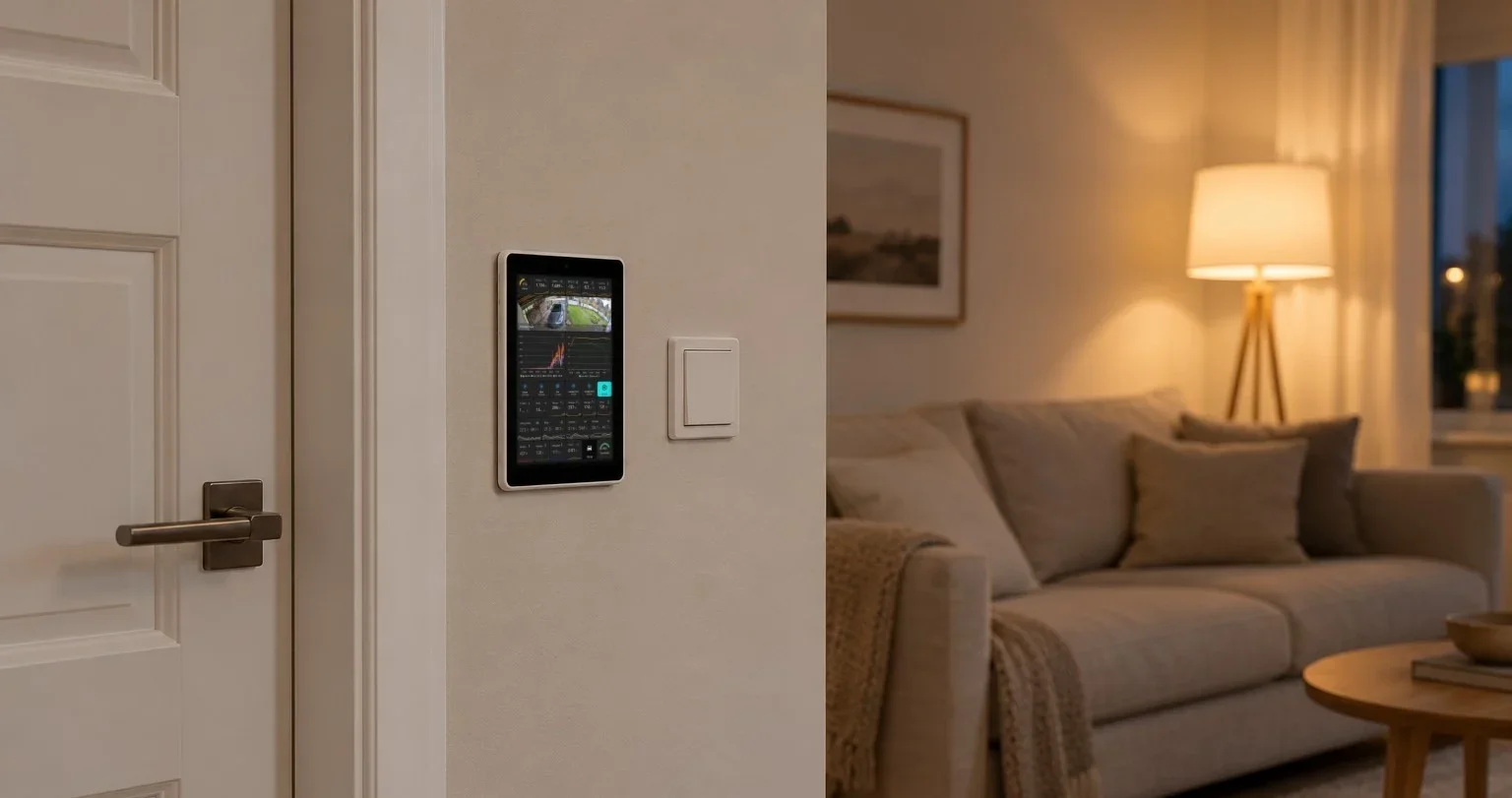
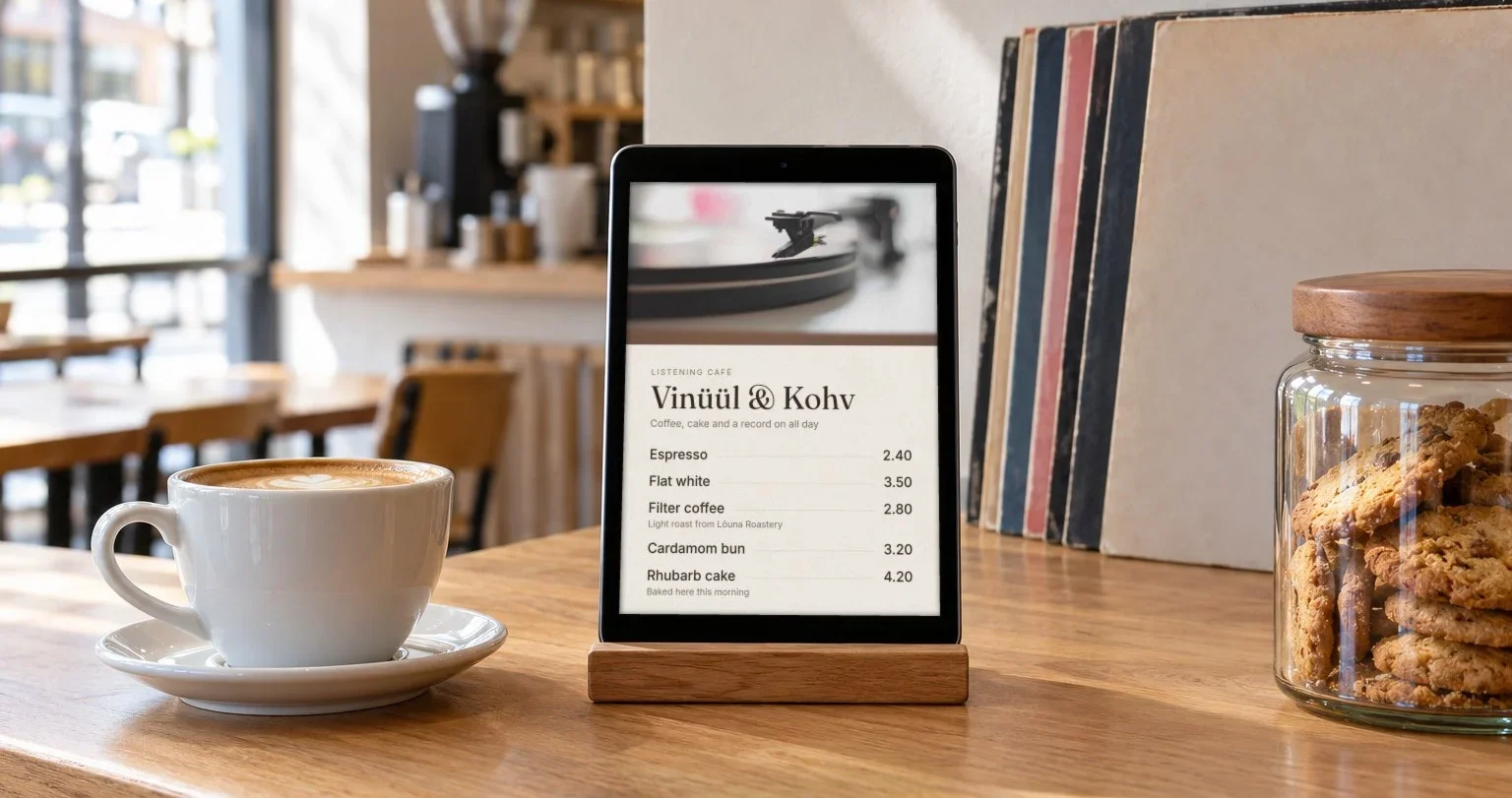
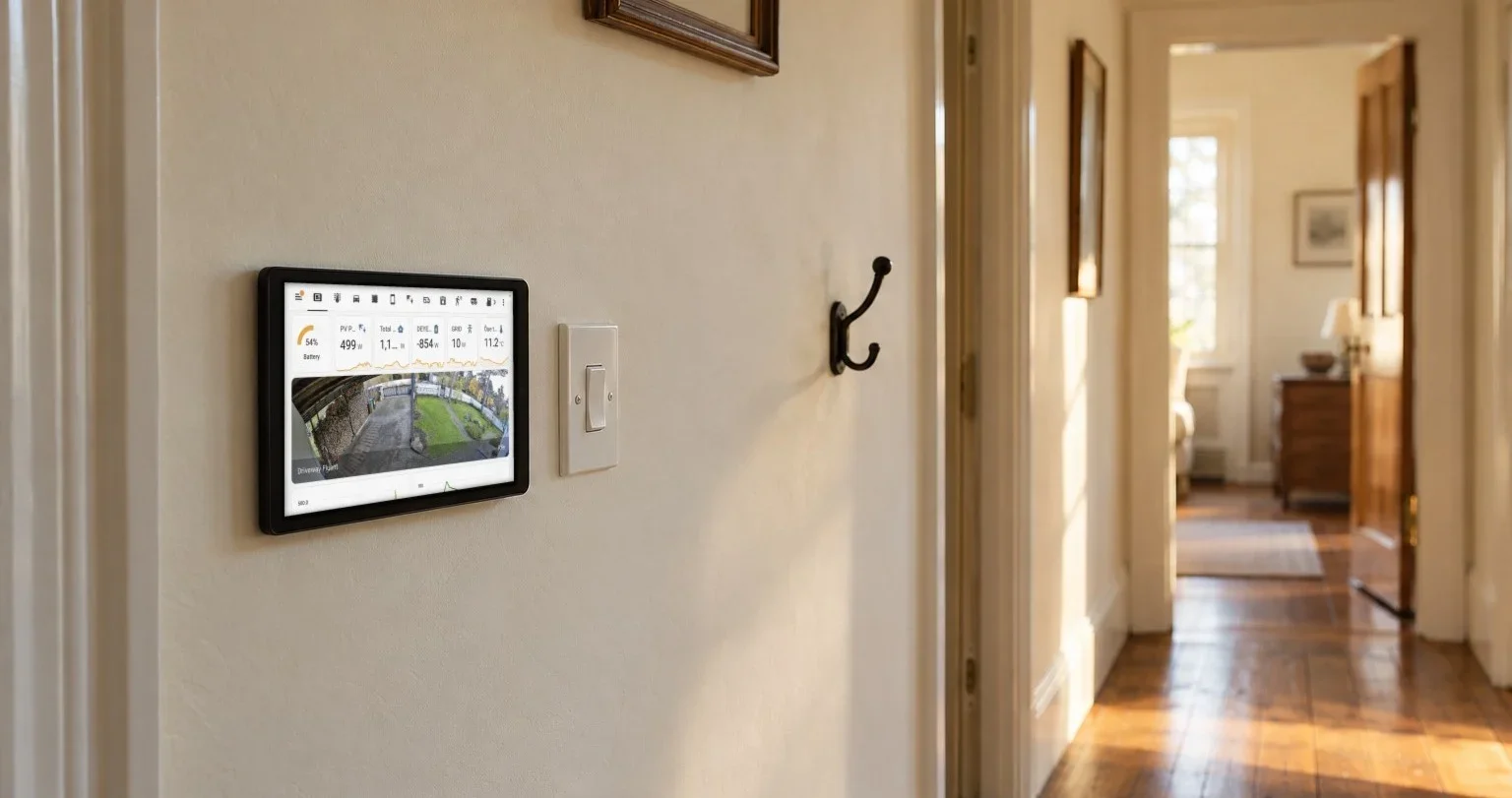
The same app that runs a product catalog at a trade show runs a cafe menu, a meeting room display, or a Home Assistant wall dashboard at home — it's the same job. If you want the home-dashboard version of this guide, see Best iPad Kiosk App for Home Assistant Dashboards in 2026.
Common Exhibition Kiosk Mistakes (and How to Avoid Them)
Relying solely on venue Wi-Fi. Covered above, and it's the number one cause of a dead booth display. Have a second route to your content and know how to switch to it.
Assuming the display will recover on its own. It won't — not in HAkiosk, and in most kiosk apps not in the way you'd hope. Someone on your team should glance at the screen every couple of hours, or you should pair the device with Fleet Control so you can pull a screenshot from your phone.
Skipping the lock, or setting it up in the wrong order. One curious attendee exits your display on day one and suddenly your iPad is showing your email to everyone walking by. Guided Access passcode first, then PIN, then lock — and test it.
Using a personal iPad. A text message, a calendar alert, or a FaceTime call arriving mid-demo is avoidable. The lock suppresses notifications while it's engaged, but a dedicated booth device is the better answer if you exhibit more than once a year. If you must use your own, turn on a Focus mode as well.
Forgetting power. A tablet that dies at 2 p.m. on day two is not a display, it's a paperweight. The app deliberately keeps the screen awake, which means it will drain a battery steadily — plan on mains power, not a charge overnight.
Final Verdict: Which iPad Kiosk App Should You Use for Your Exhibition?
For most exhibitors, the decision is straightforward. If you want your iPad display app for events working in minutes with no technical overhead, and your content lives at a URL you can reach, HAkiosk is the right choice: install, enter URL, set the lock, done. One-time purchase, no subscription, no MDM, no developer account. Its limits are the ones listed above — no offline copy, no timed auto-refresh, and thin black side bars pending a fix — and none of them matter for a booth with a planned network and a page that refreshes itself.
If you need local content stored on the device, printing, or deep form handling on iOS, look at Kiosk Pro — that's the gap it's built to fill.
If you're running 15+ devices with IT staff and a management console, SureLock or a proper MDM deployment is worth the setup investment.
If you have one iPad, zero budget, and one session to cover, iOS Guided Access is a functional free fallback. Understand the limits going in: no remote URL updates, no multi-device management, and Safari's chrome unless you save the page to your home screen first.
Search HAkiosk on the App Store or Google Play and have your exhibition display running before you finish your coffee. Set it up once, lock it down, rehearse the network failure — and then go have the conversations that actually grow your business.
Questions, or something in this guide that didn't match what you saw? Write to me at hakiosk.com/support. I answer.