The Home Assistant kiosk app for wall tablets
HAkiosk shows your Home Assistant dashboard full screen on an iPad, iPhone or Android tablet, with no browser bars and no sidebar. Home Assistant can wake the tablet, show its screensaver and read its battery.
iPad and iPhone with iOS 15 or newer. Android 8.1 or newer.
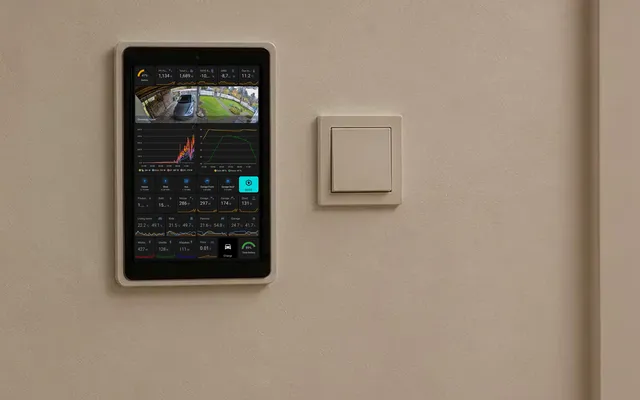
What you get
iPad, iPhone and Android
The same app on both stores. An automation written for one panel works on the other: same topics, same commands.
Home Assistant adds the tablet
Turn on Announce to Home Assistant and the tablet appears as a device with battery, charging, presence, a screensaver switch and a refresh button. No YAML.
Wakes when someone walks up
From a motion sensor over MQTT, from the front camera if you turn face detection on, or from the proximity sensor on Android tablets that have one.
Your photos while it rests
The screensaver can show an Immich album. The photos are stored on the tablet, so they keep showing when the network drops.
Locked to one dashboard
A PIN guards the settings. Guided Access on an iPad, or screen pinning on Android, keeps people in the app.
Set up in three steps
1
Install HAkiosk
From the App Store or Google Play, on the tablet that goes on the wall.
2
Add your dashboard
Swipe in from the left edge on an iPad, or press and hold the top-left corner on Android, and enter your dashboard's address. Sign in to Home Assistant once; the app keeps the session. Kiosk mode adds ?kiosk=true for the kiosk-mode add-on from HACS, which hides the header and the sidebar.
3
Lock it and mount it
Set a PIN, then turn on Guided Access on the iPad or screen pinning on Android (part of Pro). Turn on MQTT if Home Assistant should control the screen.
Wake the panel when someone walks in
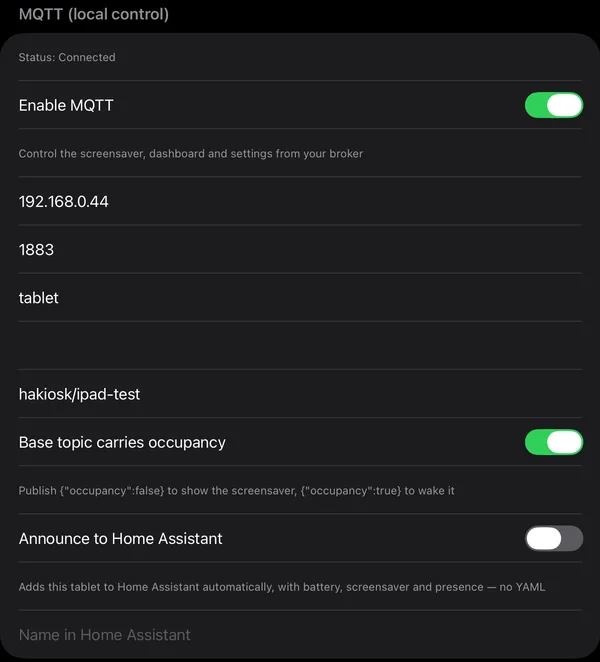
With MQTT on, the tablet listens on hakiosk/hallway/cmd. This automation wakes it when the hallway motion sensor turns on. Send {"action":"screensaver"} when the hallway is empty again, or use the Screensaver switch that discovery adds.
alias: Hallway panel wakes on motion
triggers:
  - trigger: state
    entity_id: binary_sensor.hallway_motion
    to: "on"
actions:
  - action: mqtt.publish
    data:
      topic: hakiosk/hallway/cmd
      payload: '{"action":"wake"}'
Other commands on the same topic
{"action":"screensaver"}{"action":"refresh"}{"action":"url","url":"…"}{"action":"set","darkMode":true}
Keep HAkiosk on screen, as a wall panel is, and on an iPad leave Allow device standby off.
What each platform offers
The same app on both stores, with no subscription on either.
iPad and iPhone
- iOS and iPadOS 15 or newer
- A paid app with everything included, Fleet Control too
- MQTT control and Home Assistant discovery
- Wake on a face with the front camera
- Photo screensaver from your Immich album
- Guided Access and a PIN keep the panel in the app
- Assist voice on your Home Assistant dashboard
- Allow device standby for panels that should sleep at night
Android
- Android 8.1 or newer
- Free, with a one-time Pro purchase
- MQTT control and Home Assistant discovery, free
- Wake on the proximity sensor, or on a face with Pro
- Photo screensaver from Immich or a folder on the tablet
- Your own page, message or picture when the network drops, and a reload when it is back
- Runs as the Home app; with Pro it starts after a reboot
- With Pro: screen pinning and a PIN, scheduled reloads and page changes, Fleet Control
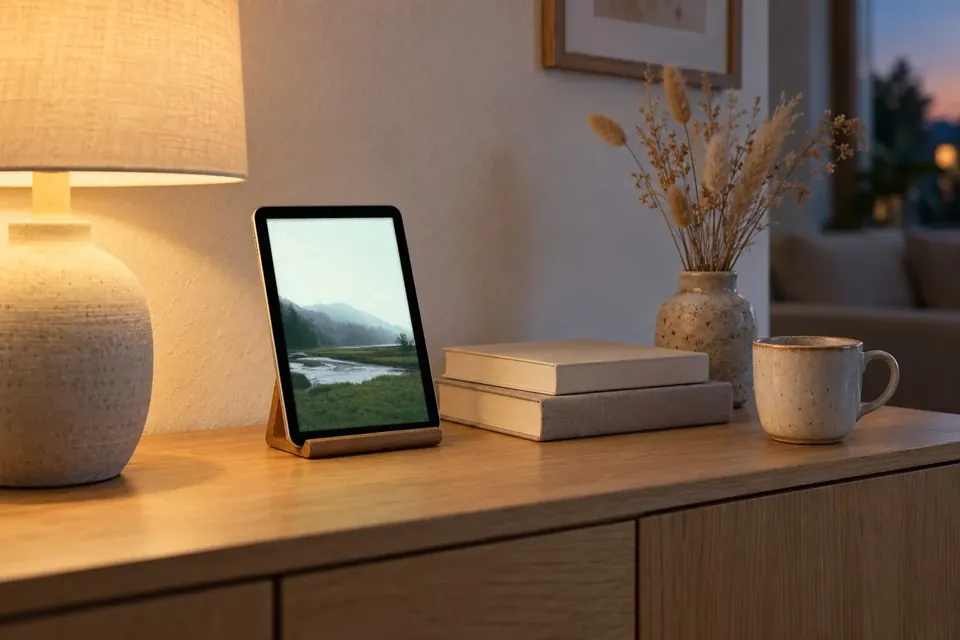
Your own photos between uses
Point the screensaver at an Immich album and choose how often the photo changes, from 5 seconds to 5 minutes. Up to 120 photos are kept on the tablet and checked for changes every six hours. On Android a folder on the tablet works too.
Questions people ask
Do I have to sign in to Home Assistant every time?
No. Sign in once, and the app keeps the session the way a browser does. You can give the panel its own Home Assistant user, so the session on the wall is not yours.
How do I hide Home Assistant's header and sidebar?
Install the kiosk-mode add-on from HACS and turn on Kiosk mode in HAkiosk. HAkiosk adds ?kiosk=true to the address, which the add-on reads. On Android, kiosk mode is on from the start.
Can Home Assistant wake the screen?
Yes, over MQTT. Publish {"action":"wake"} to hakiosk/hallway/cmd from an automation, or turn on Base topic carries occupancy and send {"occupancy":true} to the base topic. Keep HAkiosk on screen, and on an iPad leave Allow device standby off.
Does the camera record the room?
No. Face detection is off until you turn it on. It runs on the tablet, and no frames or faces are stored or sent anywhere. It only tells the app, and Home Assistant if you use discovery, whether someone is in front of the screen.
Can the iPad sleep at night?
Yes. Turn on Allow device standby and the iPad locks on its own Auto-Lock timer and wakes at a touch. On a panel Home Assistant should wake, leave it off.
What happens when the Wi-Fi drops?
The photo screensaver keeps showing the photos stored on the tablet. On Android the app shows an offline notice and reloads the dashboard when the network is back. On an iPad, swipe in from the right edge to reload.
Is it a subscription?
No. On iPad and iPhone HAkiosk is a paid app with everything included. On Android it is free, and a one-time Pro purchase adds the PIN and screen pinning, face wake, schedules, start on boot and Fleet Control. A purchase follows your Apple ID or Google account to your other devices.
Read more on the blog
- HAkiosk 1.6 for iPad and iPhone: Home Assistant control over MQTT, and your own photos on the screensaver
- HAkiosk 2.2 for Android: the tablet adds itself to Home Assistant, and the MQTT crash is fixed
- Make Your Home Assistant Wall Tablet Wake When You Walk Up
- Best iPad Kiosk App for Home Assistant Dashboards in 2026
- Turn Your Android Tablet into a Home Assistant Kiosk (2026 Setup Guide)
More than one panel in the house?
Fleet Control at hakiosk.com/control shows every paired tablet on one page. Change a panel's dashboard, wake it, refresh it or lock it from your phone, and group panels by room. Included on iPad and iPhone; part of Pro on Android.
About Fleet ControlPut your dashboard on the wall
Install HAkiosk on the tablet you already have.
Other ways to use HAkiosk
HAkiosk works with any website. Here are other popular use cases:
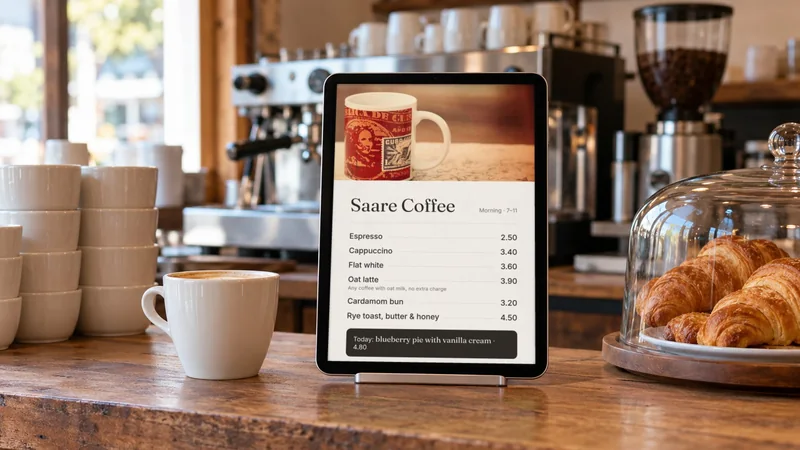
Cafe & Restaurant Menus
Showcase your menu, daily specials, and promotions on tablets. Easy to update and always up-to-date.
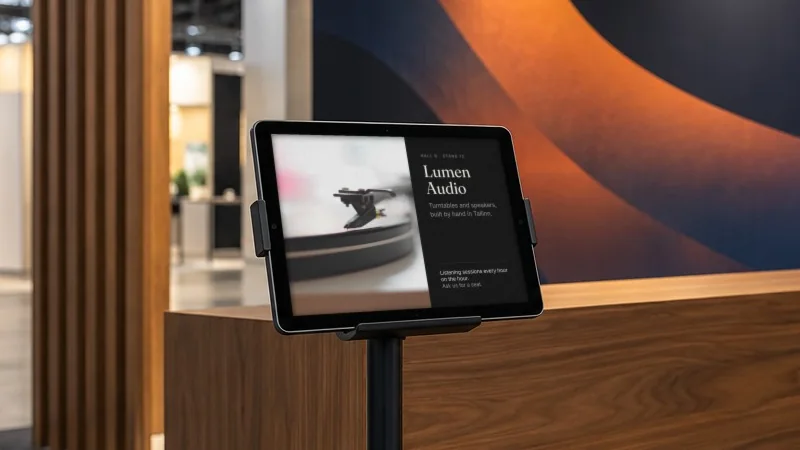
Exhibitions & Trade Shows
Run 35 booth tablets from your phone. Push URLs, swap booth content, refresh stale screens — without walking the floor.
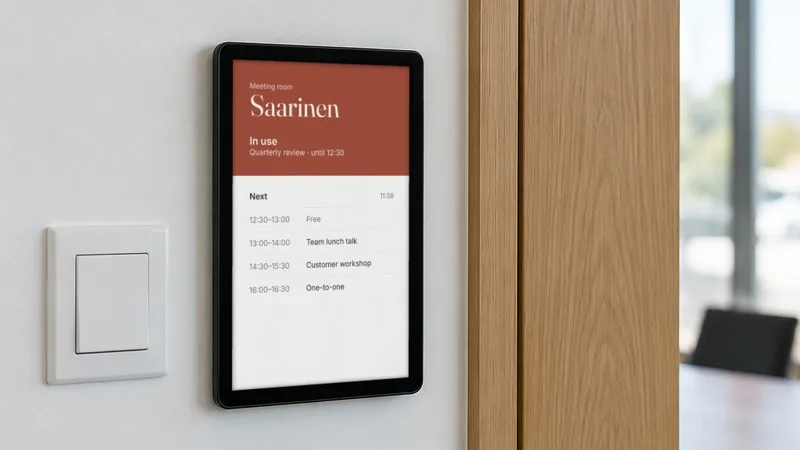
Office Meeting Rooms
Display room booking schedules, availability, and reservations. Perfect for modern office spaces.
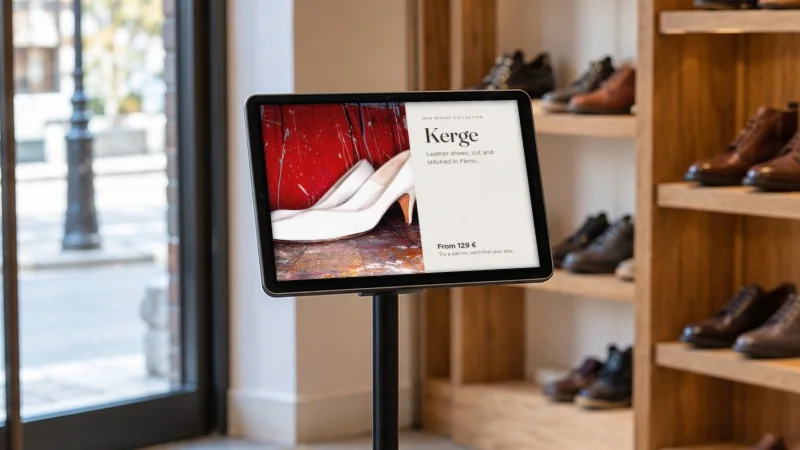
Digital Signage
Create eye-catching displays for retail stores, lobbies, waiting areas, and public spaces.
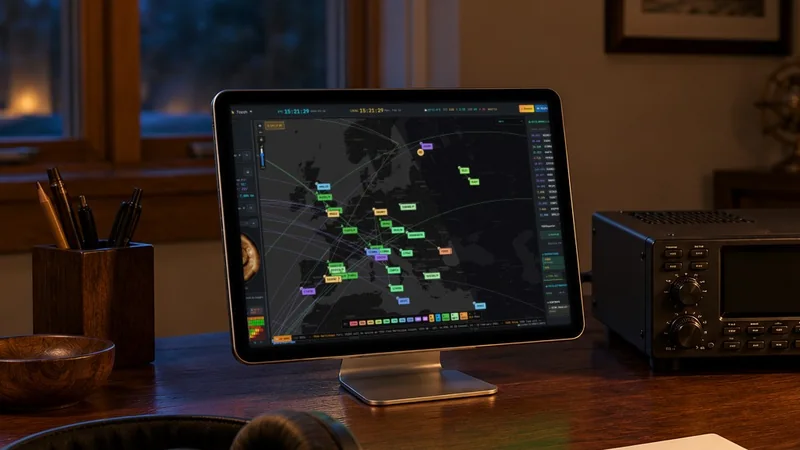
Amateur Radio Dashboard
Display OpenHamClock on a dedicated tablet. DX spots, propagation data, space weather, and satellite tracking at a glance.