Run an entire trade-show floor from your phone
Exhibitions are the hardest place to manage tablet kiosks: dozens of booths, last-minute URL changes, frozen screens nobody can reach. HAkiosk turns that into a single dashboard you control from your phone — push a new URL to all of Booth A in one tap, refresh a stuck demo, recover a frozen screen without leaving your spot.
Last-minute URL swaps
Sponsor changed their demo at 8:55am? Push the new URL to every booth tablet from your phone before the doors open.
Booth groups & overrides
Bundle tablets by booth or zone. Set a default URL on the group; override a single tablet for a special demo without breaking the rest.
Visitor-proof PIN lock
A PIN you control from the dashboard guards the kiosk's settings. Add Guided Access on the iPad or screen pinning on Android, and curious visitors cannot leave the app either.
Fleet Control was built for this
Every feature on /fleet — URL push, refresh, screensaver, wake, groups, PIN lock — was designed with exhibitions in mind first.
Push in seconds
Commands land the next time the tablet checks in — usually under 10 seconds.
Live heartbeat
Every device reports a 5-minute heartbeat so you spot the frozen one before visitors do.
Group cascade
Change one URL on the group, every booth tablet follows. Override the demo booth without touching the rest.
Setup
Lock the booth tablet into HAkiosk
The HAkiosk PIN locks the in-app gestures. To stop a curious visitor from pressing the Home button and leaving the app, enable your device's single-app lock too — this is a one-time setup per tablet.
The HAkiosk PIN only protects this app's settings and admin swipes. To also stop visitors from exiting HAkiosk into other apps, enable your device's built-in single-app lock. HAkiosk engages it automatically when you turn Lock on.
On iPad or iPhone (Guided Access)
- 1Open iOS Settings → Accessibility → Guided Access.
- 2Turn the Guided Access toggle ON.
- 3Tap Passcode Settings → Set Guided Access Passcode and pick 4 digits. Tip: use the same PIN as in HAkiosk so visitors only ever see one prompt.
- 4Open HAkiosk and turn Lock this device on (in the in-app Settings or from hakiosk.com/control). HAkiosk engages Guided Access automatically.
- 5To temporarily leave HAkiosk: triple-click the Top (power) / Home button, enter the Guided Access passcode, tap End.
On Android (Screen Pinning)
- 1Open Settings → Security → Screen Pinning (path varies by manufacturer — Samsung calls it "Pin windows").
- 2Turn Screen Pinning ON. Enable "Ask for PIN before unpinning" (or biometric).
- 3Open HAkiosk and turn Lock this device on (in the in-app Settings or from hakiosk.com/control). HAkiosk engages Screen Pinning automatically.
- 4To temporarily leave HAkiosk: swipe up and hold (gesture nav) or press Back + Recents at the same time (3-button nav), then enter your unlock PIN.
These are one-time iPad / Android setup steps. Once configured, HAkiosk handles the rest.
Other ways to use HAkiosk
HAkiosk works with any website. Here are other popular use cases:
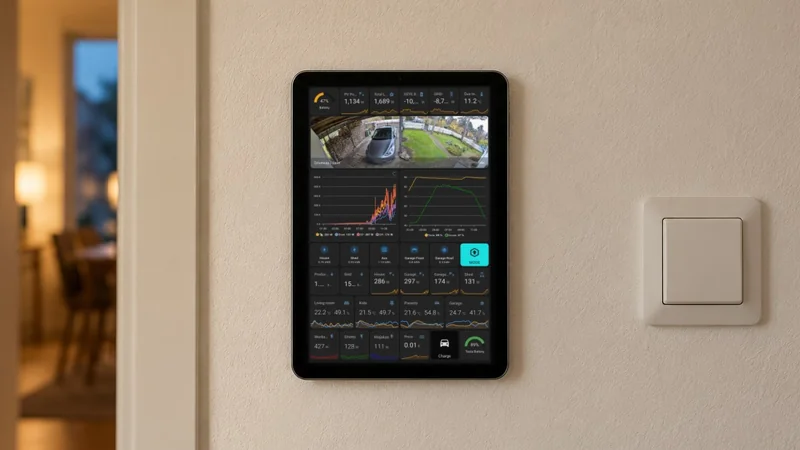
Home Assistant Dashboards
Display your smart home dashboard on tablets mounted on walls. Monitor devices, control automation, and stay connected.
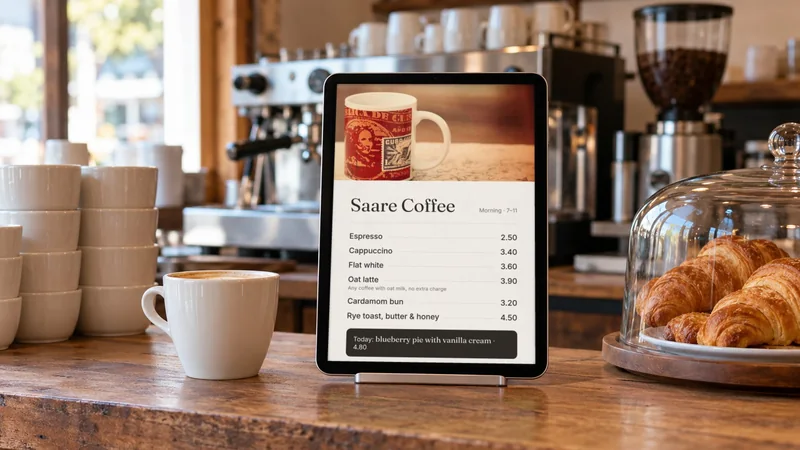
Cafe & Restaurant Menus
Showcase your menu, daily specials, and promotions on tablets. Easy to update and always up-to-date.
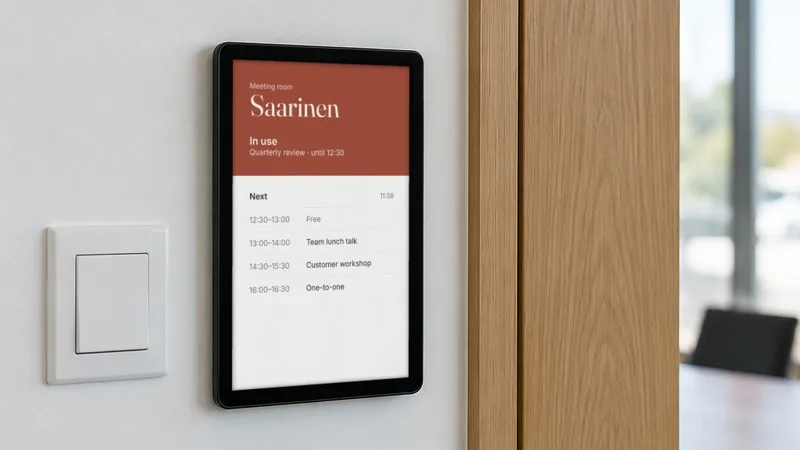
Office Meeting Rooms
Display room booking schedules, availability, and reservations. Perfect for modern office spaces.
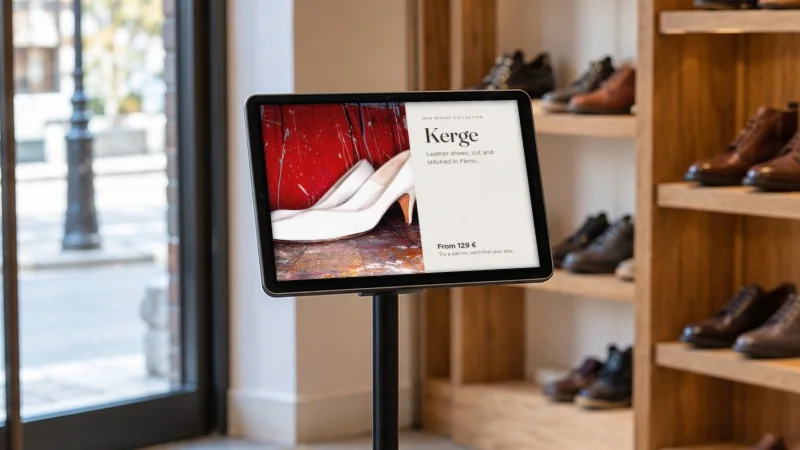
Digital Signage
Create eye-catching displays for retail stores, lobbies, waiting areas, and public spaces.
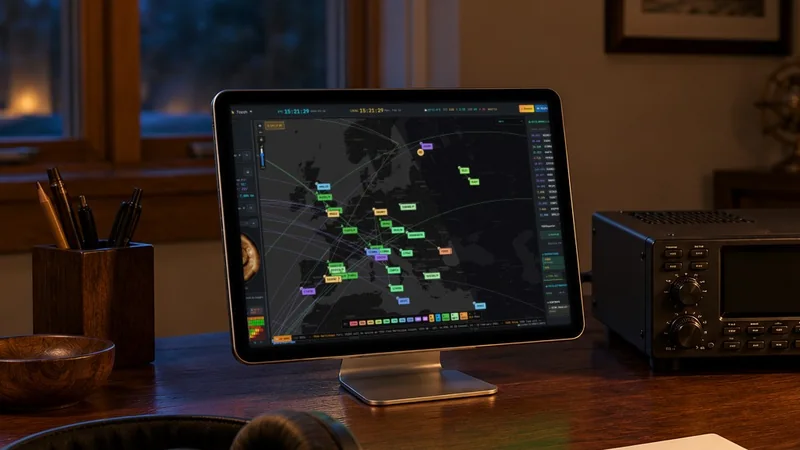
Amateur Radio Dashboard
Display OpenHamClock on a dedicated tablet. DX spots, propagation data, space weather, and satellite tracking at a glance.